Contents
- IP leak protection: what v2rayN and Frigate AppGuard do
- Step 1. Prepare your VPN profile and download AppGuard
- Step 2. Configure a separate v2rayN client with the wizard
- Step 3. Choose options and click Apply and check
- Step 4. Check executable paths and configure Windows DNS
- Step 5. Allow local access if needed
- Step 6. Apply AppGuard protection and check the overview
- If you already have v2rayN
- How to add a site or application after setup
- Check that a selected application cannot connect directly
- Frequently asked questions
How do you prevent ChatGPT and Codex from exposing your IP when the VPN disconnects on Windows? Routing traffic through a VPN is only part of the setup: selected applications also need rules that block direct connections. This guide uses v2rayN for routing and Frigate AppGuard to apply Windows Firewall rules. When the tunnel is switched off, a protected application should receive a connection error rather than reconnect through your regular internet connection and expose its public IP.
The goal is an application-specific kill switch: blocking direct internet access when the VPN disconnects. You need a working connection profile before you start. We cover importing that profile, routing, executable protection and verification, with DNS configuration and checks handled separately. A successful connection-blocking test does not establish protection against every type of IP or DNS leak.
The example uses Windows 11 x64, v2rayN 7.25.6 and Frigate AppGuard 0.4.0 RC 36. You need a working VPN profile before you start. Buying a VPS and installing a VPN server are outside the scope of this guide. RC 36 is a prerelease build. Most screenshots come from video v7, recorded with RC 35; the download and local-access screens show RC 36. The steps and button names have been checked against the guide bundled with RC 36.
Following the screenshots: AppGuard is shown with a Russian interface. The instructions give English descriptions alongside the original Russian labels for the main controls, so you can find the same buttons. Screenshot captions are in English.
IP leak protection: what v2rayN and Frigate AppGuard do
The setup has three separate parts:
- v2rayN routing. The client uses the Xray core and TUN mode: a virtual network adapter that sends application traffic to the routing engine. A
proxyrule sends matching connections through the selected VPN server;directconnects directly. - AppGuard application protection. The wizard finds executable files from the routing list and creates its own outbound blocking rules in Windows Firewall. These restrict direct connections through interfaces other than the selected TUN adapter. With TUN switched off, a protected application should receive a connection error instead of using the regular internet connection.
- System DNS. DNS translates a name such as
chatgpt.cominto an IP address. An application may request that address before connecting to the site. VPN routing and EXE blocking therefore need a separate DNS configuration.
The Windows system proxy and TUN are different ways to handle traffic. An application may ignore the system proxy while its traffic can still pass through TUN and v2rayN routing rules. However, an EXE name in a routing rule does not confirm that AppGuard has found its file and applied a blocking rule. We will check that separately.
For a server-side SOCKS5 and privoxy setup for individual tools, see our guide to proxies for Claude Code and ChatGPT. This article covers the Windows client and protection for selected applications.
Step 1. Prepare your VPN profile and download AppGuard
You need Windows x64, permission to approve the Windows administrator prompt (UAC), and one source of connection settings: a VLESS link, an HTTPS subscription containing a compatible VLESS node, or a configured node from another v2rayN installation. Keep the connection link private and hide it in screenshots.
If you do not have a profile yet, the Proksik service can help you configure a VPN on your VPS and obtain a connection profile. Server preparation is also covered in our guide to setting up your own VPN. Return here once your profile works.
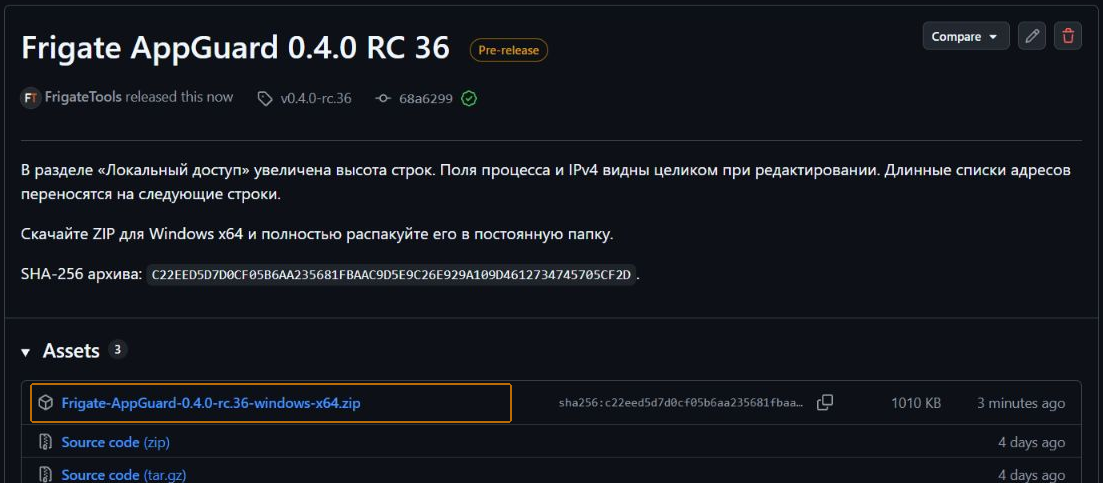
- Open the AppGuard RC 36 release on GitHub.
- Expand Assets and download
Frigate-AppGuard-0.4.0-rc.36-windows-x64.zip. The Source code archives are not needed for installation. - Right-click the downloaded ZIP and choose Extract All. Use a permanent folder; avoid moving the extracted application after configuration.
- Run
Frigate-AppGuard-Setup.exefrom the extracted folder. It provides the setup wizard, so you do not need to create scripts or Task Scheduler entries manually.
Choose how to obtain v2rayN.
- No existing client: the main path in this guide. AppGuard downloads, extracts and configures a separate copy of v2rayN. You do not need to download another archive manually.
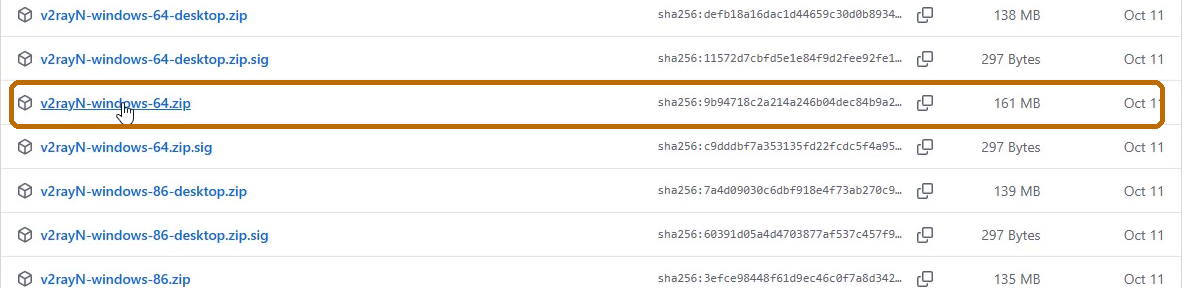
- Prefer to extract it yourself? Open the official v2rayN releases. To match the demonstration, use version 7.25.6 and the Windows x64 ZIP. Extract the entire archive to a permanent folder and run
v2rayN.exeas a portable client. In AppGuard, choose the existing-client setup described below.
Before installing protection, you can record your regular public IP in Edge and with curl.exe while TUN is off. The command and test procedure appear in the final section. Close any AI applications that should only connect through the VPN during this baseline measurement.
Step 2. Configure a separate v2rayN client with the wizard
- In AppGuard, click Configure AppGuard (“Настроить AppGuard”).
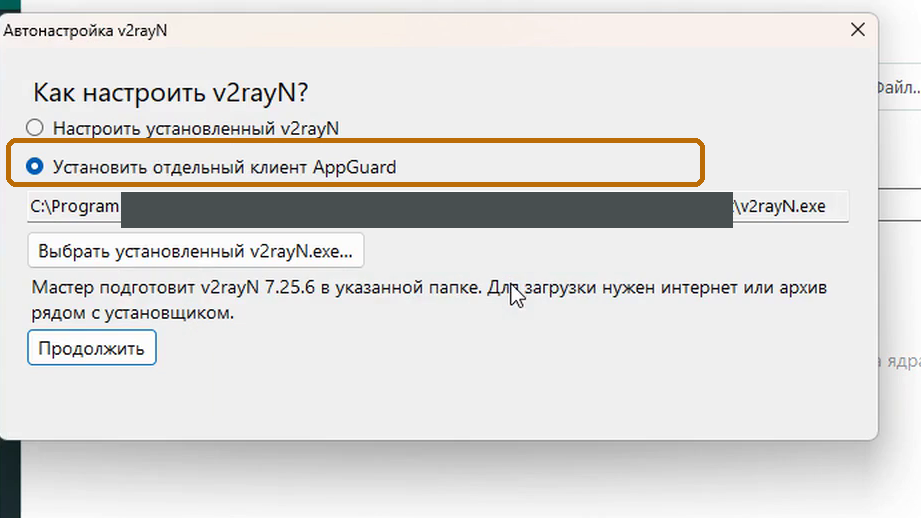
- Choose Configure v2rayN automatically (“Настроить v2rayN автоматически”), then Install a separate AppGuard client (“Установить отдельный клиент AppGuard”).
- Check the folder shown by the wizard and click Continue (“Продолжить”). The VPN and routing settings will open.
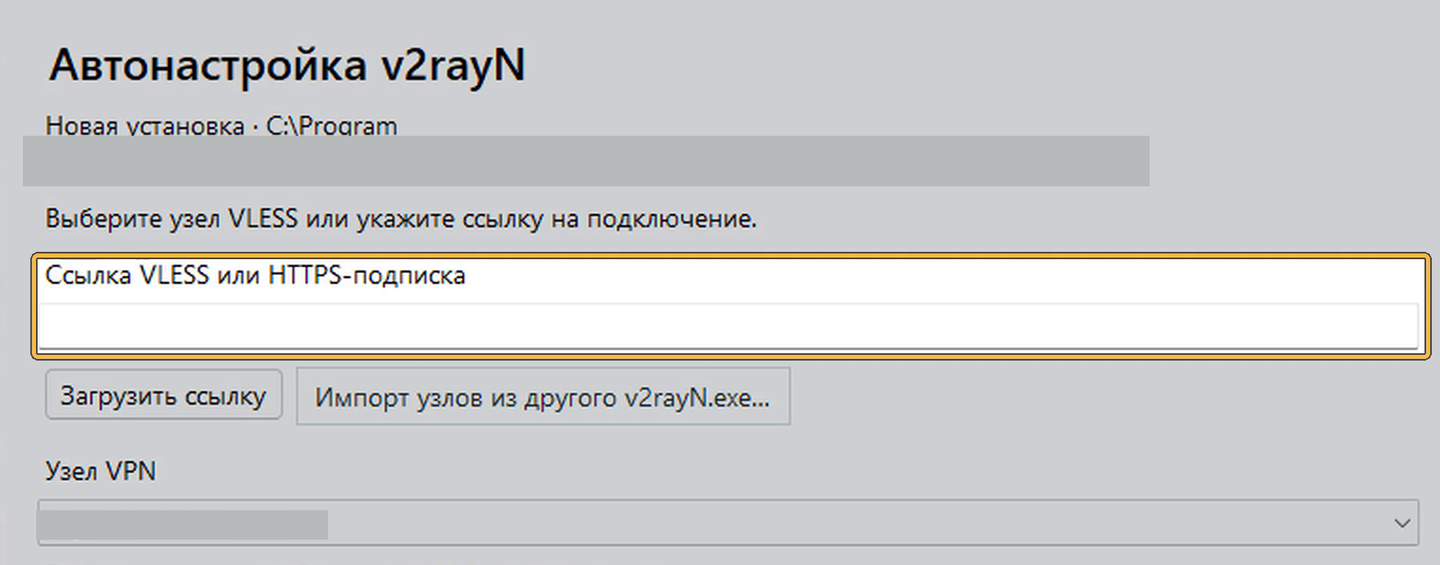
- Paste your VLESS link or HTTPS subscription into the import field and click Load link (“Загрузить ссылку”). Select your connection under VPN node (“Узел VPN”). To transfer nodes from an older installation, use Import nodes from another v2rayN.exe (“Импорт узлов из другого v2rayN.exe”) and select that executable.
- Confirm that your working node is selected. If import fails, read the wizard's message: this build does not support every possible VLESS format or parameter.
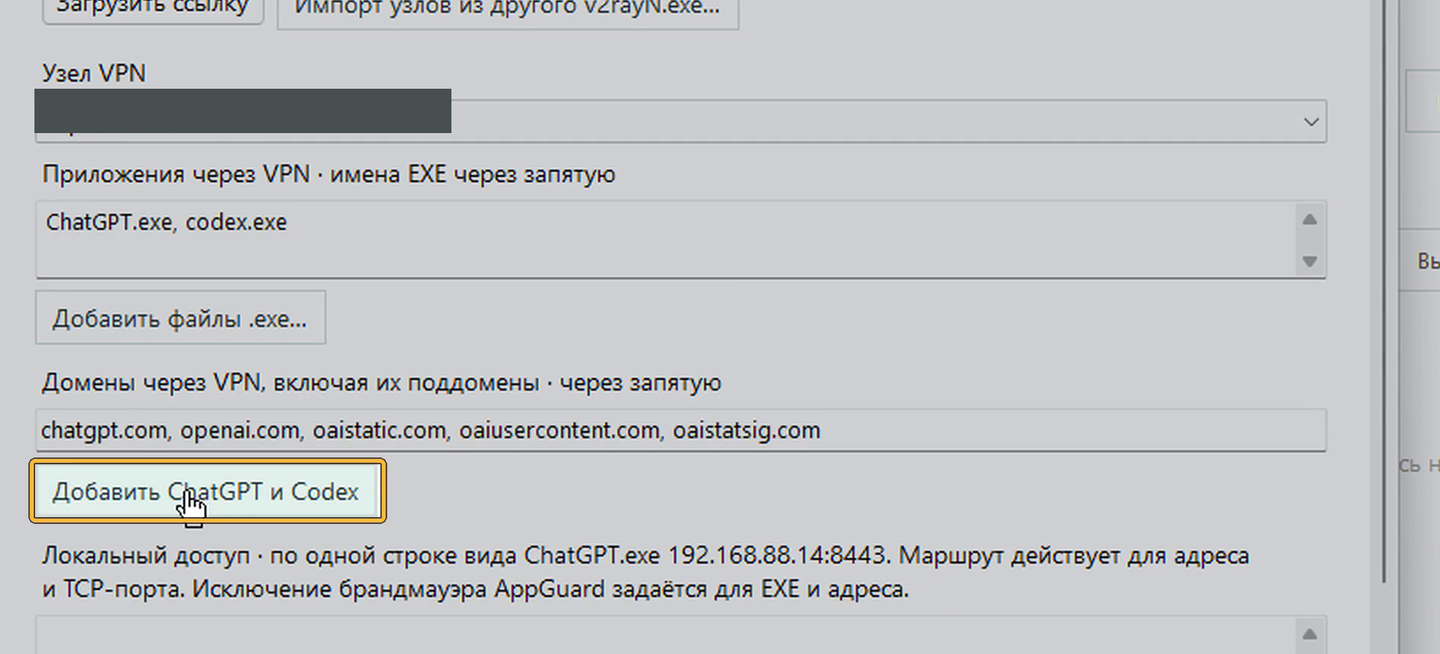
Click Add ChatGPT and Codex (“Добавить ChatGPT и Codex”), then check both lists.
Applications through VPN (“Приложения через VPN”) should contain:
ChatGPT.exe, codex.exeDomains through VPN (“Домены через VPN”) should contain these five domains, including their subdomains:
chatgpt.com, openai.com, oaistatic.com, oaiusercontent.com, oaistatsig.comThe button adds these entries while retaining custom ones. These are routing lists. Confirmation of firewall rules for executables actually found on the computer comes after saving the AppGuard settings.
Step 3. Choose options and click Apply and check
The same window contains several optional settings. Review them individually:
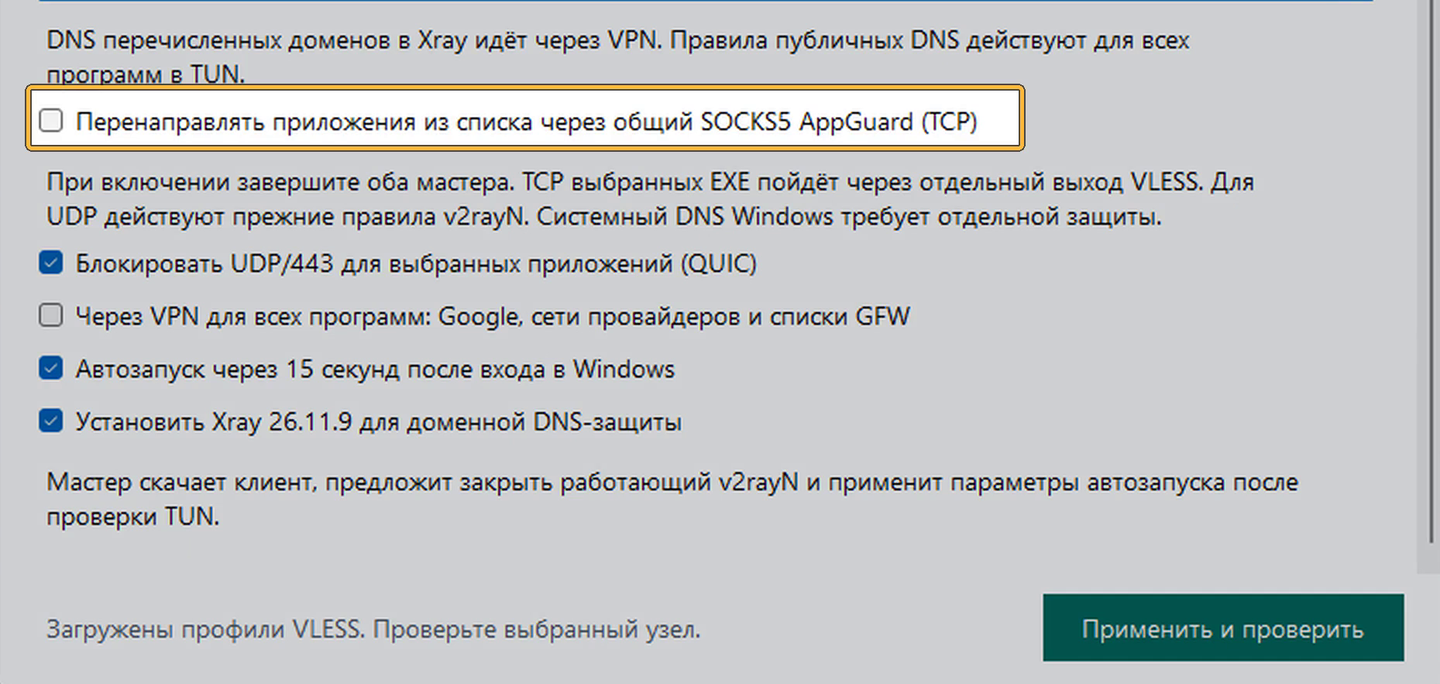
- Redirect listed applications through the shared AppGuard SOCKS5 (TCP) (“Перенаправлять приложения из списка через общий SOCKS5 AppGuard (TCP)”). This experimental mode adds a separate local TCP handler. It is off in the demonstration. Leave it unchecked for the main setup: selected applications use TUN routing. This switch does not provide separate DNS protection.
- Block UDP/443 for selected applications (QUIC) (“Блокировать UDP/443 для выбранных приложений (QUIC)”). Blocking is enabled in the video. It prevents selected applications from using this connection type. QUIC is used by HTTP/3, among other protocols; browsers usually fall back to HTTPS over TCP. Consider this setting if an application requires QUIC. This checkbox alone does not establish complete IP or DNS leak protection.
- Route Google, provider networks and GFW lists through VPN for all applications (“Через VPN для всех программ: Google, сети провайдеров и списки GFW”). This adds shared routing lists and therefore affects other applications too. Leave it off to follow the selective setup in the video.
- Start automatically 15 seconds after Windows sign-in (“Автозапуск через 15 секунд после входа в Windows”). Enable it if the separate managed v2rayN copy should start after you sign in. The delay applies to the demonstrated build. For an existing external client, the wizard preserves its current startup method.
- Install Xray 26.11.9 for domain DNS protection (“Установить Xray 26.11.9 для доменной DNS-защиты”). For a new managed installation, leave installation of the compatible core enabled if you plan to use AppGuard DNS. For an existing client, check its Xray version: the system DNS module requires 26.11.9 or later.
- Review the selected node, applications, domains and optional settings.
- Click Apply and check (“Применить и проверить”). The wizard saves the client configuration and starts its checks.
- If Close v2rayN (“Закройте v2rayN”) appears, find the client icon in the Windows notification area; expand hidden icons if needed. Right-click it and choose Exit (“Выход”). Closing the main window may leave the client running in the tray.
- Return to the wizard and click Check again (“Проверить снова”). Wait for the selected client to start and the configuration check to finish.
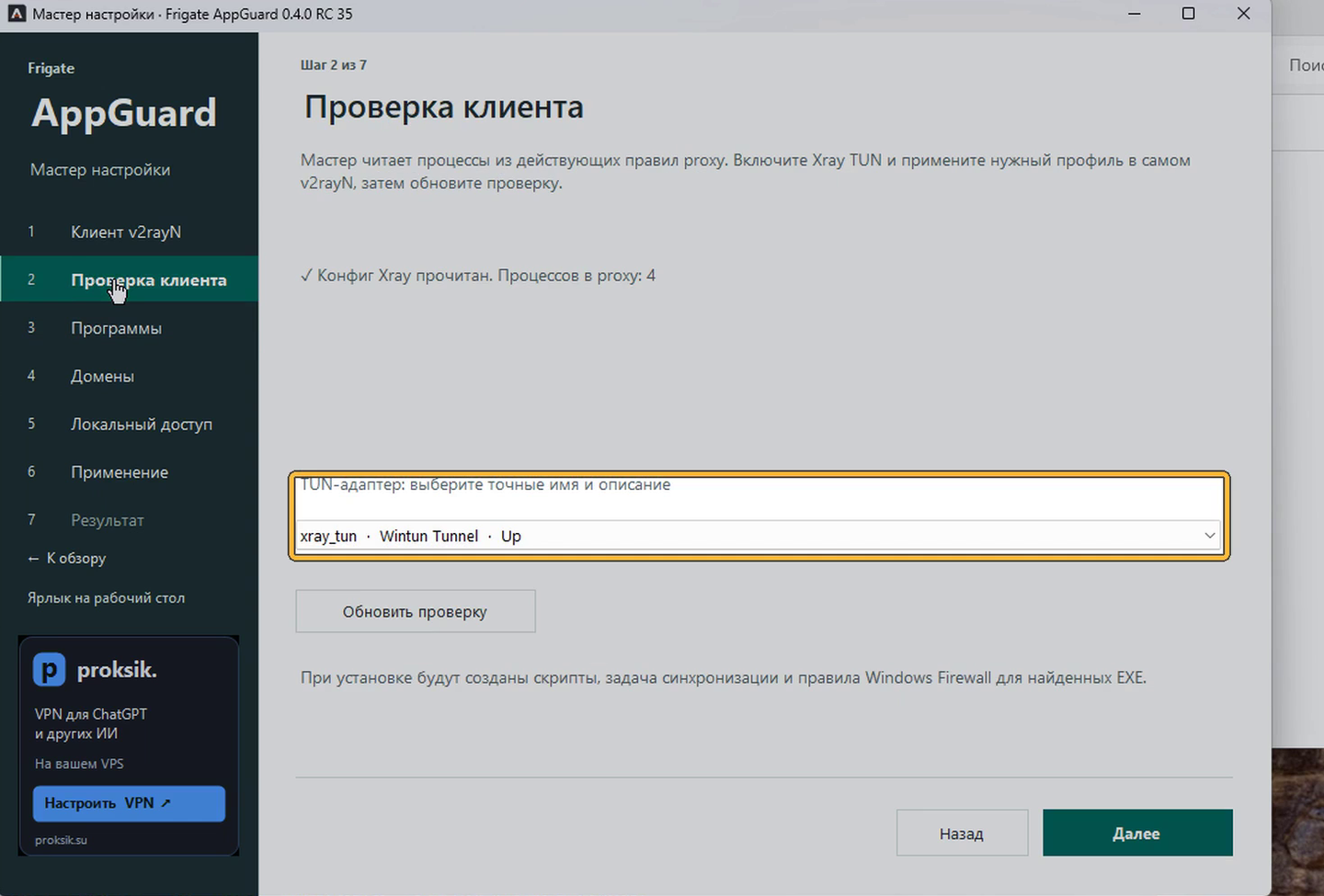
Expected result: the wizard confirms the selected client and TUN adapter, and the profile is ready. On the Client check (“Проверка клиента”) step, verify the path to the intended v2rayN copy, its configuration and the detected TUN adapter. Resolve any reported problem before applying protection.
Step 4. Check executable paths and configure Windows DNS
Select the actual application files
- Open Programs (“Программы”). Find
ChatGPT.exeandcodex.exein the list. - Click Synchronize with v2rayN (“Синхронизировать с v2rayN”) if the client list has changed.
- If a path was not detected, select the row, click Select EXE (“Выбрать EXE”) and choose the installed file with that name. For multiple installations of the same application, the wizard lets you select multiple matching files.
- Confirm that the path points to the copy you actually use. If the executable name is absent, first add it to a v2rayN
proxyrule or through automatic setup, as described later.
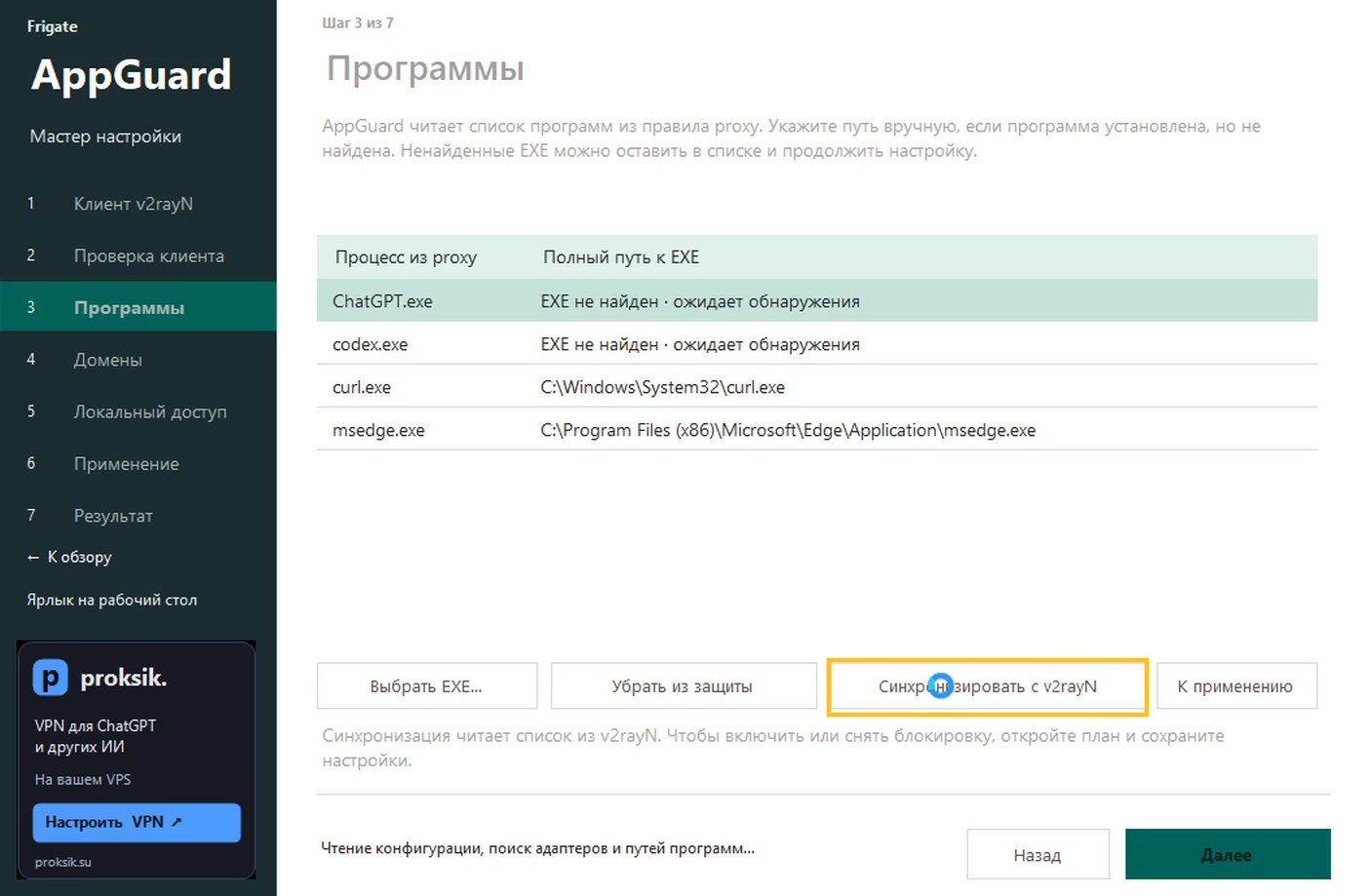
The wizard may let you save settings even when an executable is missing. This helps when an application is not installed yet, but protection is unconfirmed until the file is found and its blocking rule is confirmed.
Choose one of the three DNS modes
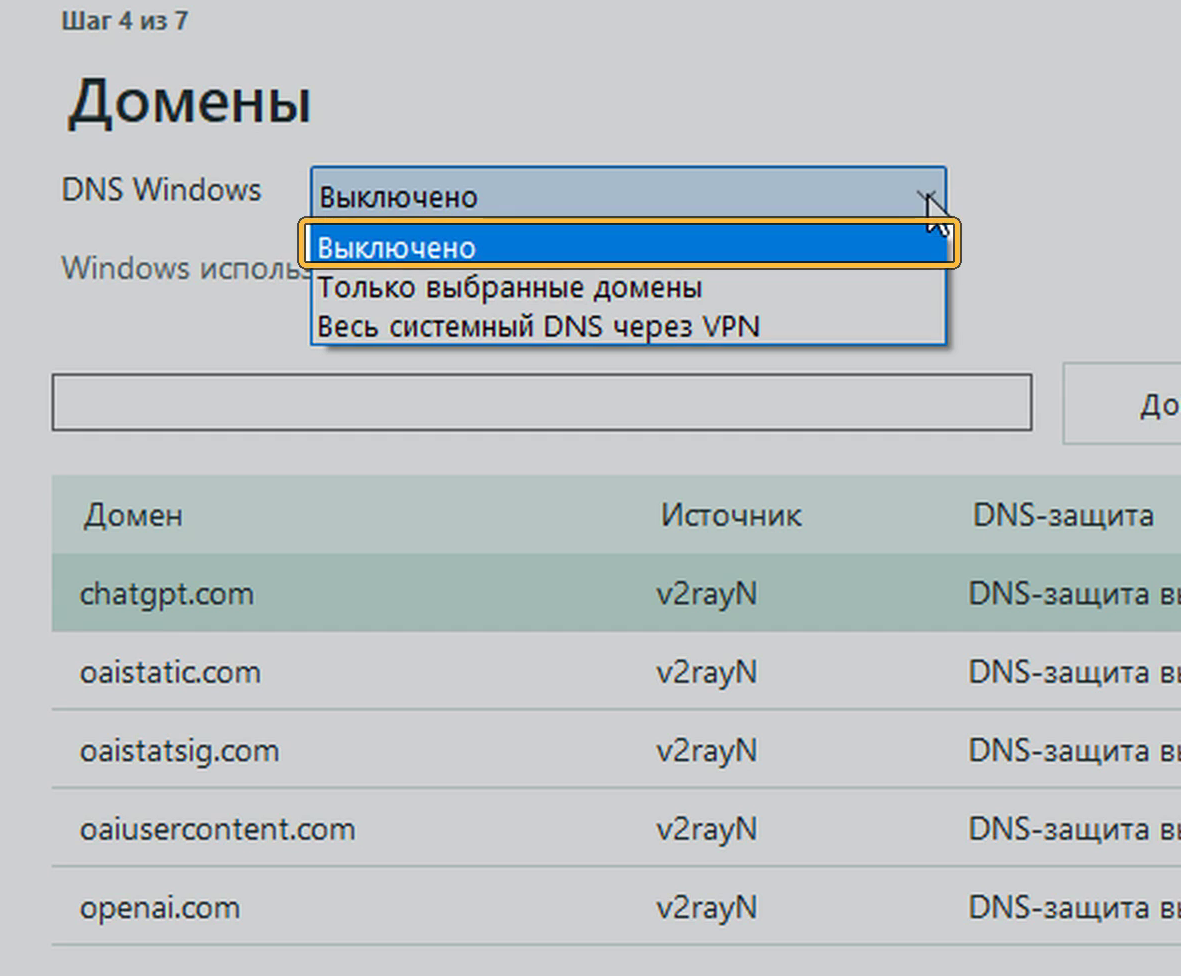
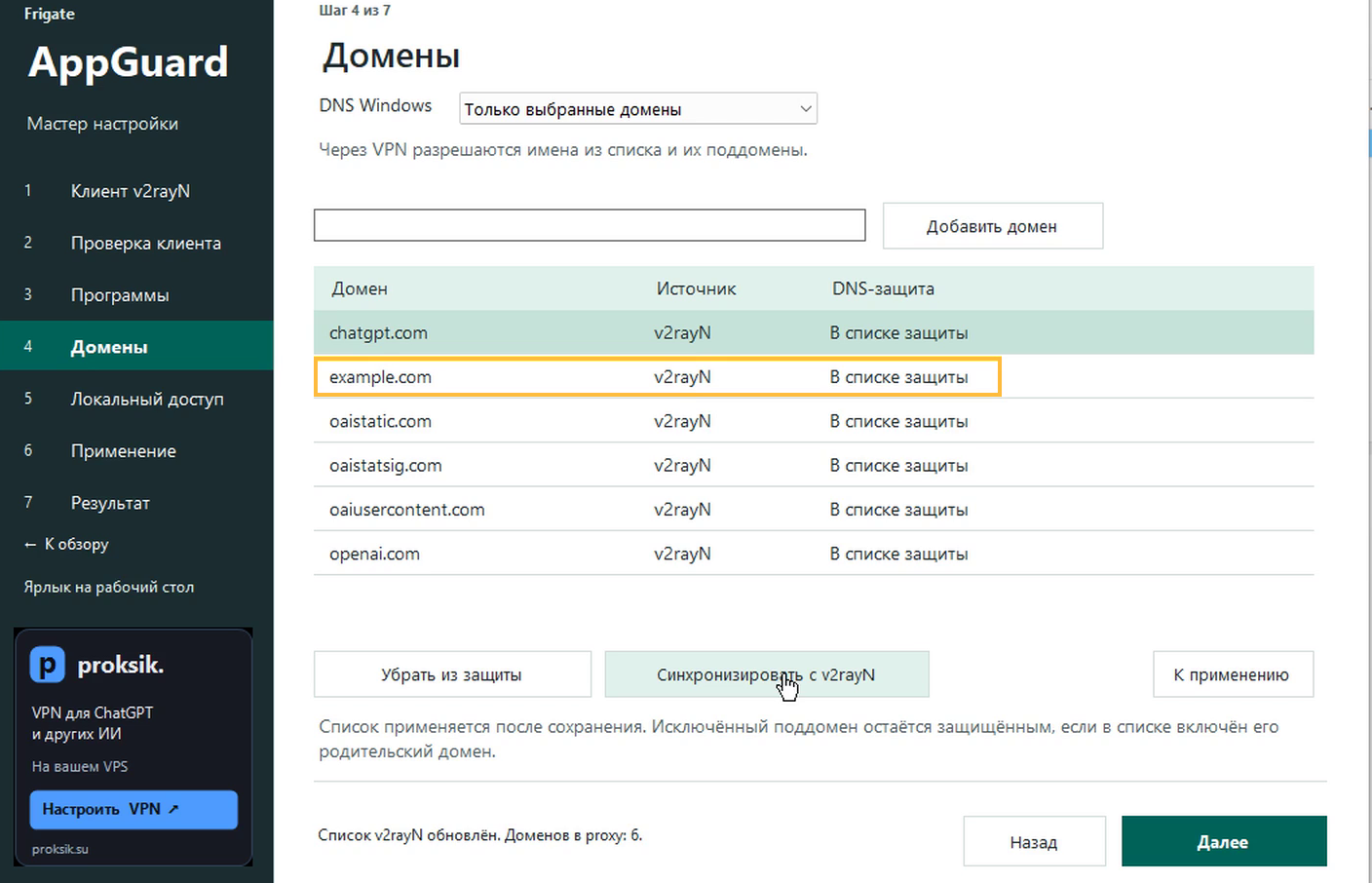
Open Domains (“Домены”) → Windows DNS (“DNS Windows”). This is a separate setting for applications that use Windows name resolution:
- Off (“Выключено”). After applying the setting, Windows uses its ordinary name resolution and AppGuard removes its own DNS rules. EXE protection is a separate setting. Choose this if you do not want to change system DNS yet.
- Selected domains only (“Только выбранные домены”). System DNS requests for the listed names and their subdomains go through the VPN. Other names use normal Windows settings. This is the mode used in the video and the main option in this guide. Check the five preset domains and synchronize with v2rayN if needed.
- All system DNS through VPN (“Весь системный DNS через VPN”). All new system DNS requests pass through AppGuard's local handler and the VPN. This also affects other applications using Windows DNS. If the VPN becomes unavailable, new names may stop resolving across the computer, although cached addresses and existing connections can still work.
If you select the full mode and the VPN server uses a hostname: the VPN node IP (“IP узла VPN”) field appears. In RC 36, an empty field is populated from the active profile using Windows DNS, preferring IPv4. Verify that it is the server's actual address. If detection fails, enter the address manually without a port; a manual value is preserved. The field is unnecessary when the node already uses an IP address.
This mapping lets the local handler resolve the VPN server's own hostname without waiting for the tunnel. Update it when the server address changes. After applying the full mode, the wizard may display Restart v2rayN (“Перезапустите v2rayN”): exit the client through its tray icon and launch it again so the main Xray process reloads DNS settings.
An application may have its own DNS resolver or DoH, which sends DNS requests over HTTPS. These differ from Windows system DNS. Responses are also cached. Check DNS separately from your public IP: successfully opening one site does not establish the absence of DNS leaks.
Browser note. The experimental Edge and Chrome DNS modules configure browser policies and require separate testing. They are off in the video and are unnecessary for the main ChatGPT and Codex setup.
Step 5. Allow local access if needed
This step is optional. Use it when a particular protected application needs a direct connection to a service on your local network. The demonstration uses ChatGPT.exe and a panel at 192.168.88.14:8443. Use this address only if such a panel really exists on your LAN; otherwise skip the example.
In v2rayN automatic setup, the Local access (“Локальный доступ”) field takes one line:
ChatGPT.exe 192.168.88.14:8443In AppGuard's separate Local access (“Локальный доступ”) section, click Add (“Добавить”), select ChatGPT.exe, and enter 192.168.88.14 in the IPv4 column without a port. Save these changes on the Apply step.
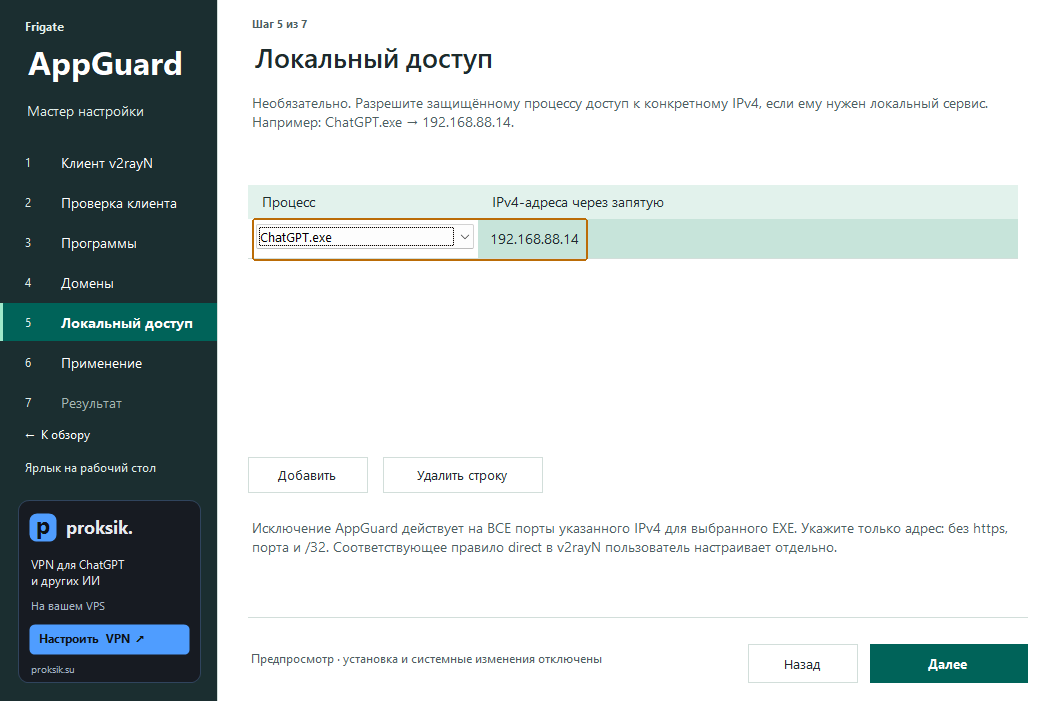
The two settings have different scopes:
- v2rayN route: connect directly to the IP on TCP port 8443.
- AppGuard exception: allow the selected EXE to reach that IPv4 address on all ports. It applies to that executable and address, rather than every application, and is not limited to port 8443.
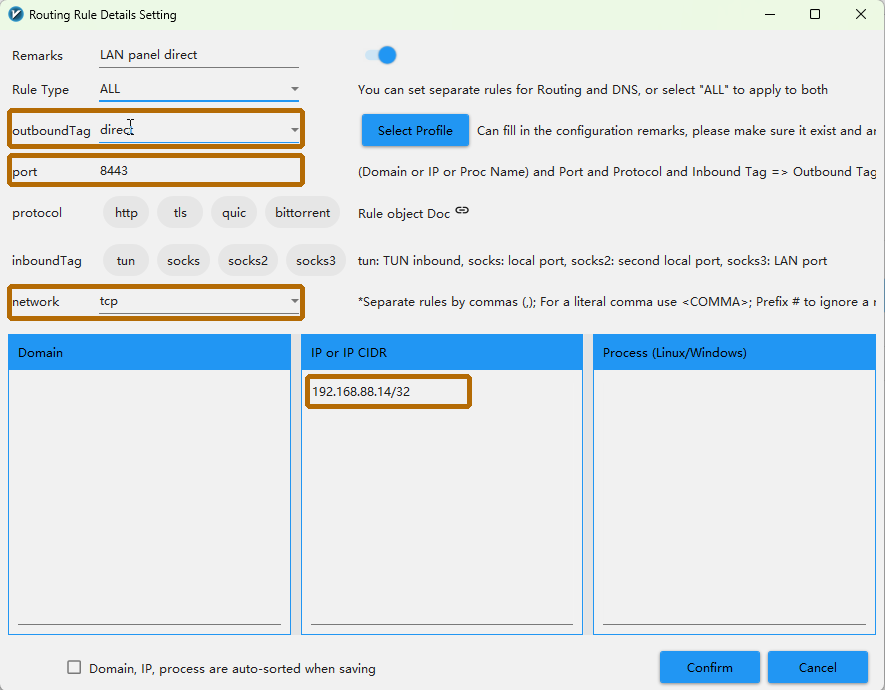
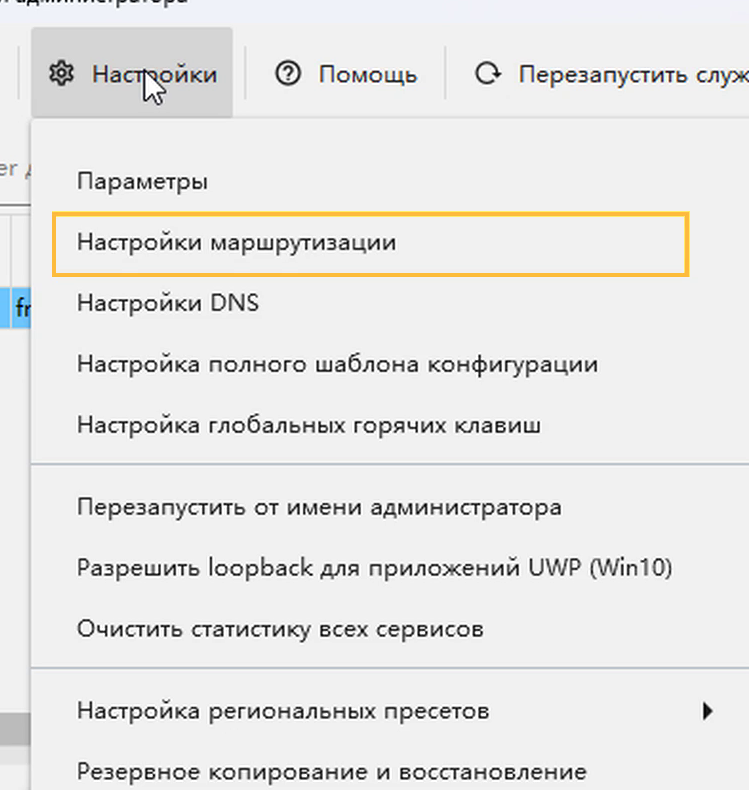
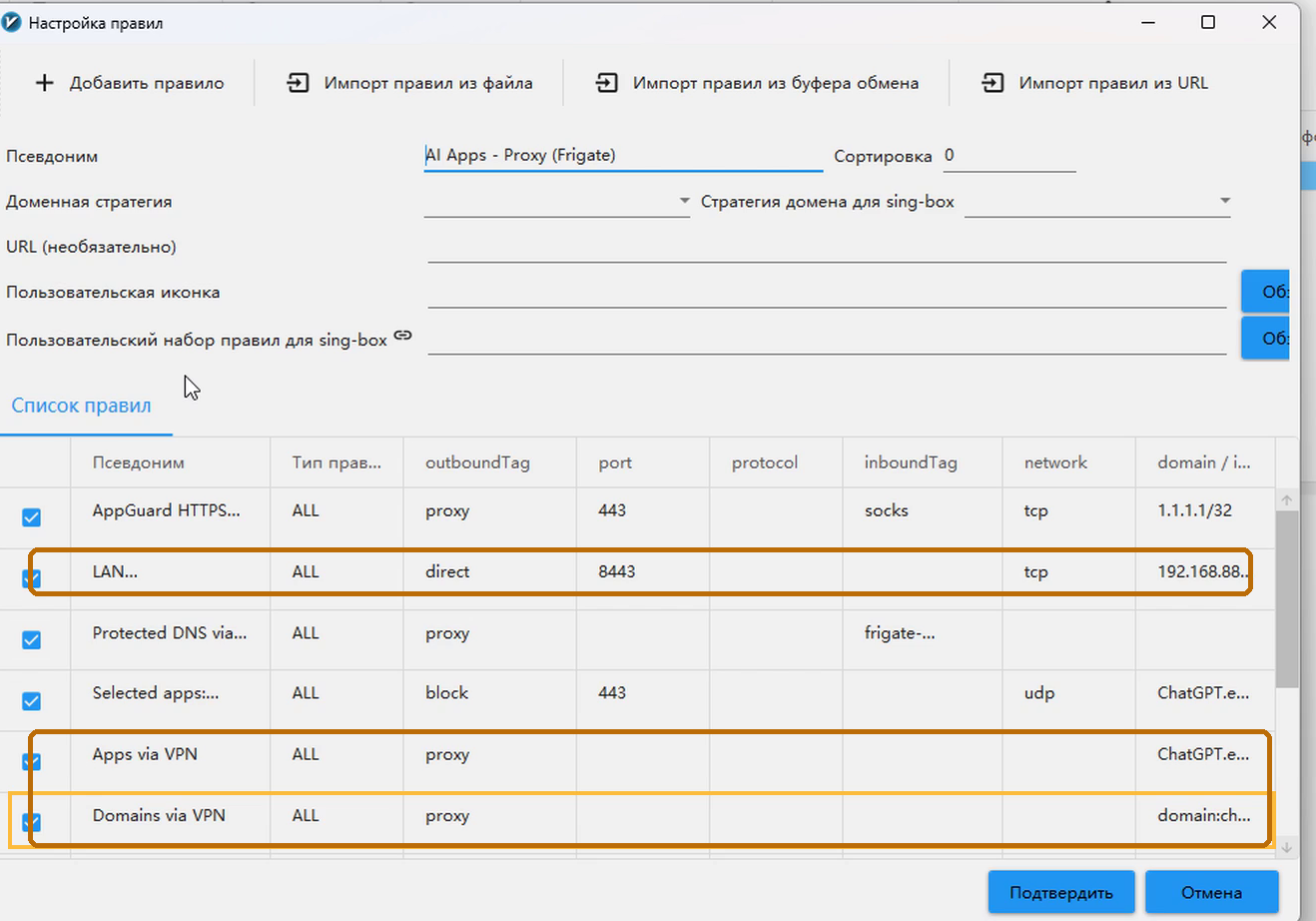
To configure the route manually, open v2rayN → Settings → Routing Settings → the active AI Apps - Proxy (Frigate) profile → Add Rule. Enter:
- IP / IP CIDR:
192.168.88.14/32; - Port:
8443; - Network:
tcp; - outboundTag:
direct.
Leave Domain and Process empty for this address-based route. This v2rayN rule applies to all matching connections to that IP and port; the AppGuard firewall exception remains tied to the selected EXE. Confirm the rule, move it above the general proxy rules, and save the profile. Set the AppGuard process/IP exception separately. If the connection still fails, check the local service itself and its own access restrictions.
Step 6. Apply AppGuard protection and check the overview
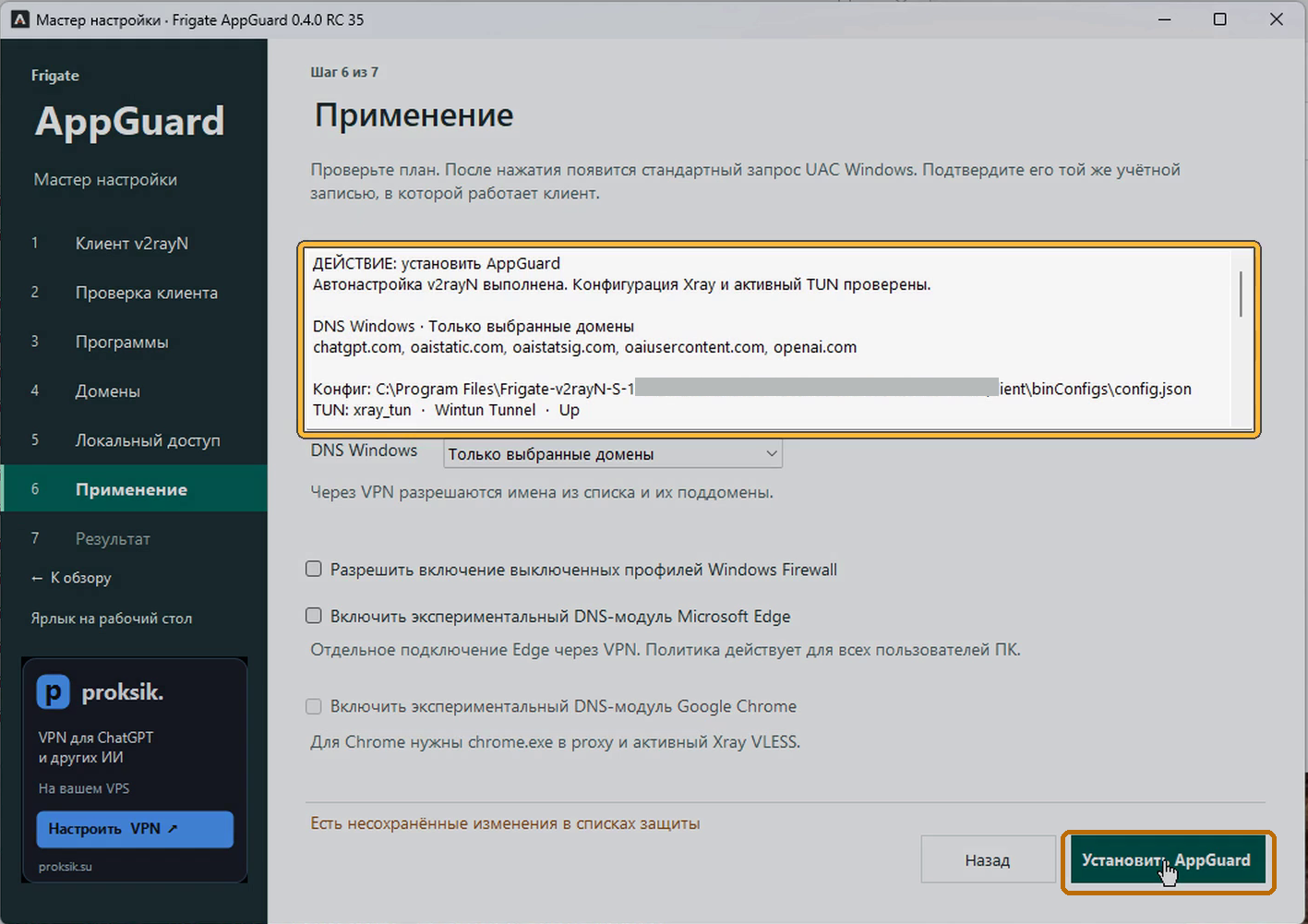
- Click Go to apply (“К применению”) or select Apply (“Применение”) on the left.
- Review the plan: the client path, selected TUN adapter, executable list, local exceptions and DNS mode.
- Allow enabling disabled Windows Firewall profiles (“Разрешить включение выключенных профилей Windows Firewall”) authorizes the wizard to enable those profiles if they are off. It does not disable the firewall or allow arbitrary inbound traffic. Check their state; protection requires the relevant profile to be enabled.
- For the initial setup, click Install AppGuard (“Установить AppGuard”); when updating protection, click Save settings (“Сохранить настройки”). Approve UAC under the same Windows account that runs the client.
- Wait for Result (“Результат”). Read any warnings, then choose Back to overview (“К обзору”) → Refresh (“Обновить”).
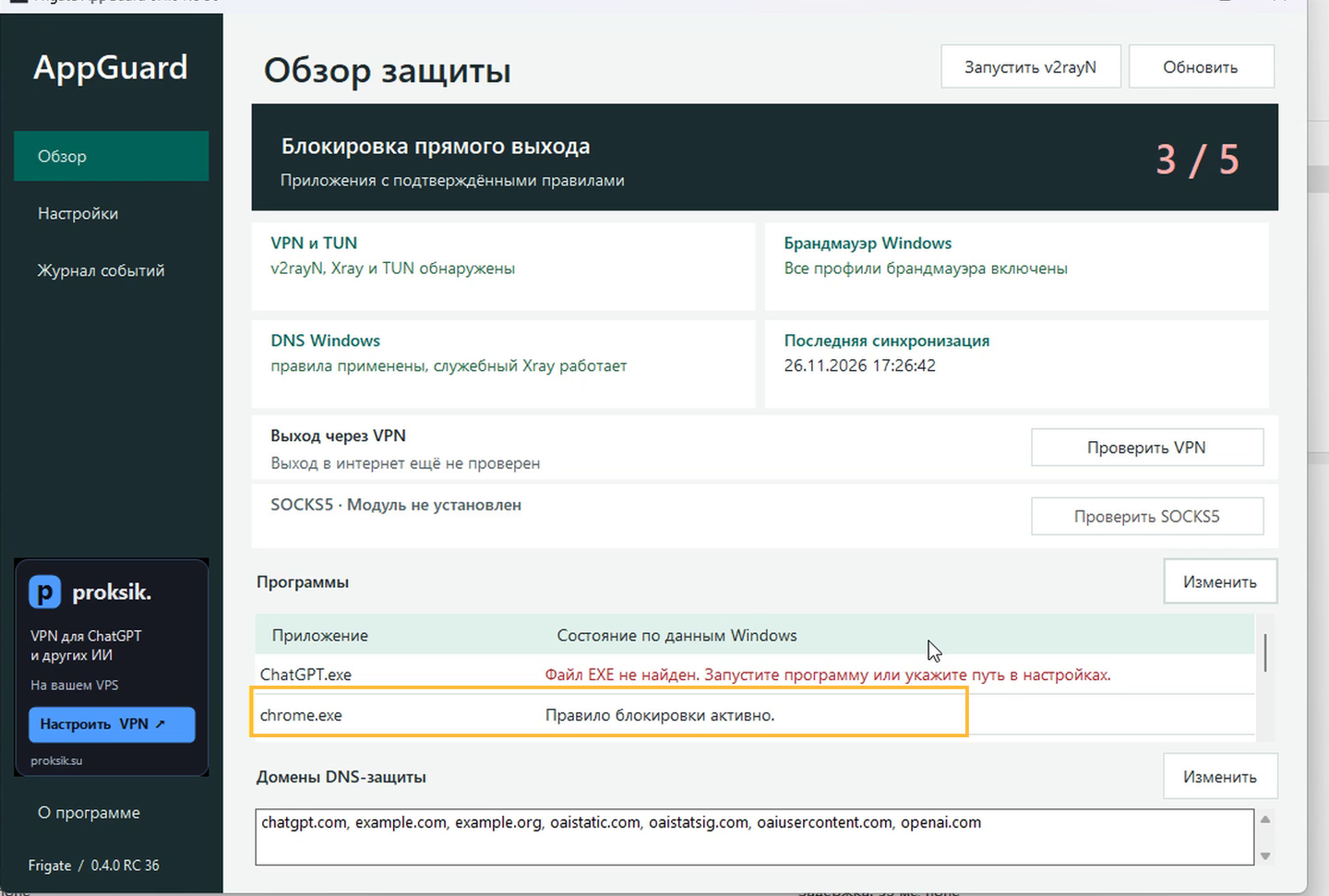
In the Protection overview (“Обзор защиты”), find the application. Blocking rule active (“Правило блокировки активно”) confirms a rule for the detected executable. EXE file not found (“Файл EXE не найден”) means its path is missing or outdated. Return to Programs, select the EXE and save the settings again.
Click Check VPN (“Проверить VPN”). AppGuard sends a test request through the client's diagnostic route and displays the public IP and test time. This checks the selected node, but does not verify every application's network requests or blocking behavior. Test the applications themselves in the final section.
For troubleshooting, open Event log (“Журнал событий”) to view changes and application errors. About (“О программе”) → Guide (“Руководство”) opens a local illustrated manual. After updating a protected application, check the path to its new EXE: a rule for an old file does not confirm protection for the new one.
If you already have v2rayN
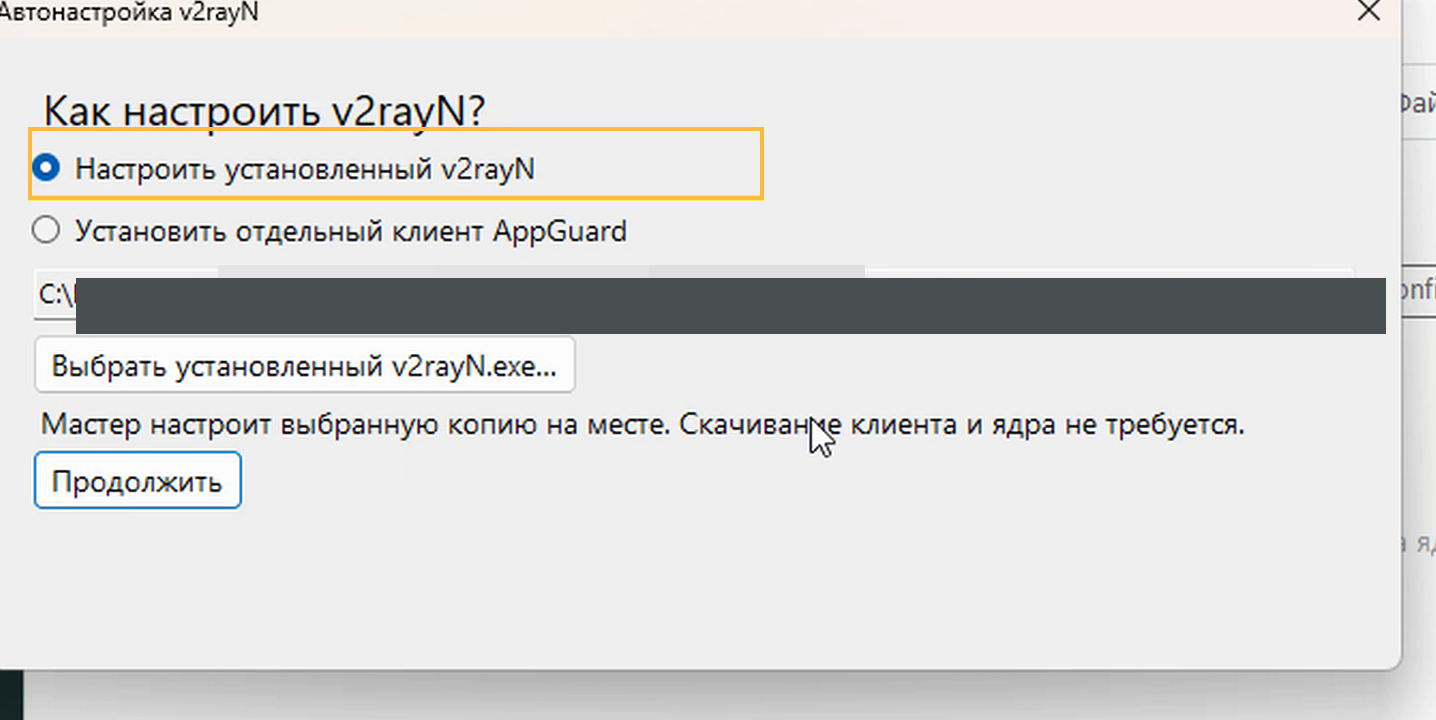
Instead of installing a second copy, open AppGuard → Configure AppGuard (“Настроить AppGuard”) → Configure v2rayN automatically (“Настроить v2rayN автоматически”) → Configure an installed v2rayN (“Настроить установленный v2rayN”). Check the folder shown. If it points to another copy, click Select installed v2rayN.exe (“Выбрать установленный v2rayN.exe”), choose the correct file, then click Continue.
The wizard uses the selected copy. Check its node, previous manual routes and application lists. If asked to close v2rayN, exit it fully through the tray and click Check again. The remaining fields, TUN checks and protection steps follow the main procedure. Avoid running two TUN-enabled copies at the same time for this setup.
How to add a site or application after setup
Choose either method below. After changing routes, update the AppGuard lists, save protection and check the result.
Method 1. Edit the active v2rayN rules manually
- Open v2rayN → Settings → Routing Settings. Open the active AI Apps - Proxy (Frigate) profile.
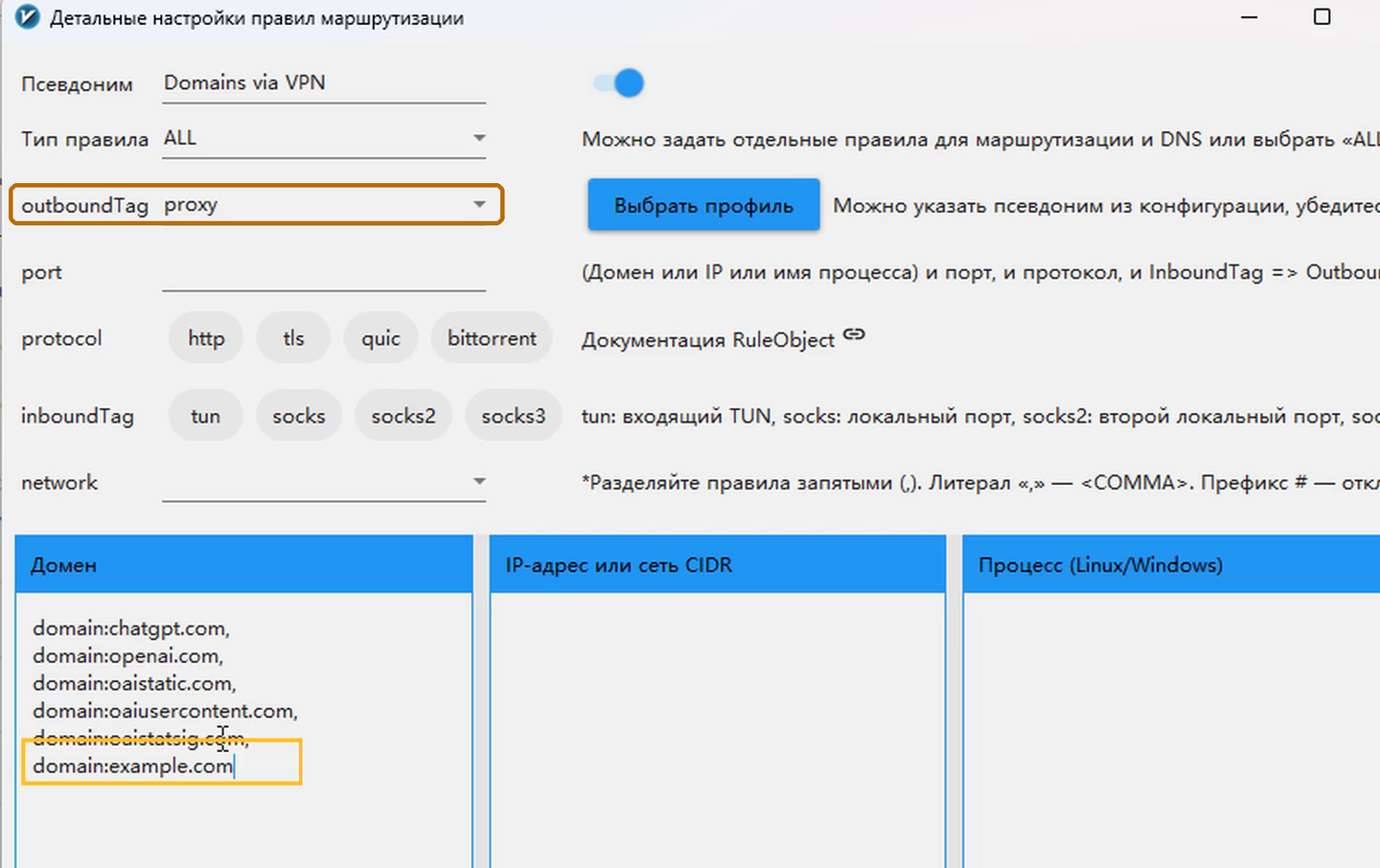
- For a website, open Domains via VPN. Add
domain:example.comin Domain, preserving existing entries. Replaceexample.comwith your domain. This format also covers its subdomains. - Check outboundTag = proxy in that rule. To let AppGuard import the domain list correctly, leave additional Process, IP, Port and Protocol conditions out of this domain rule.
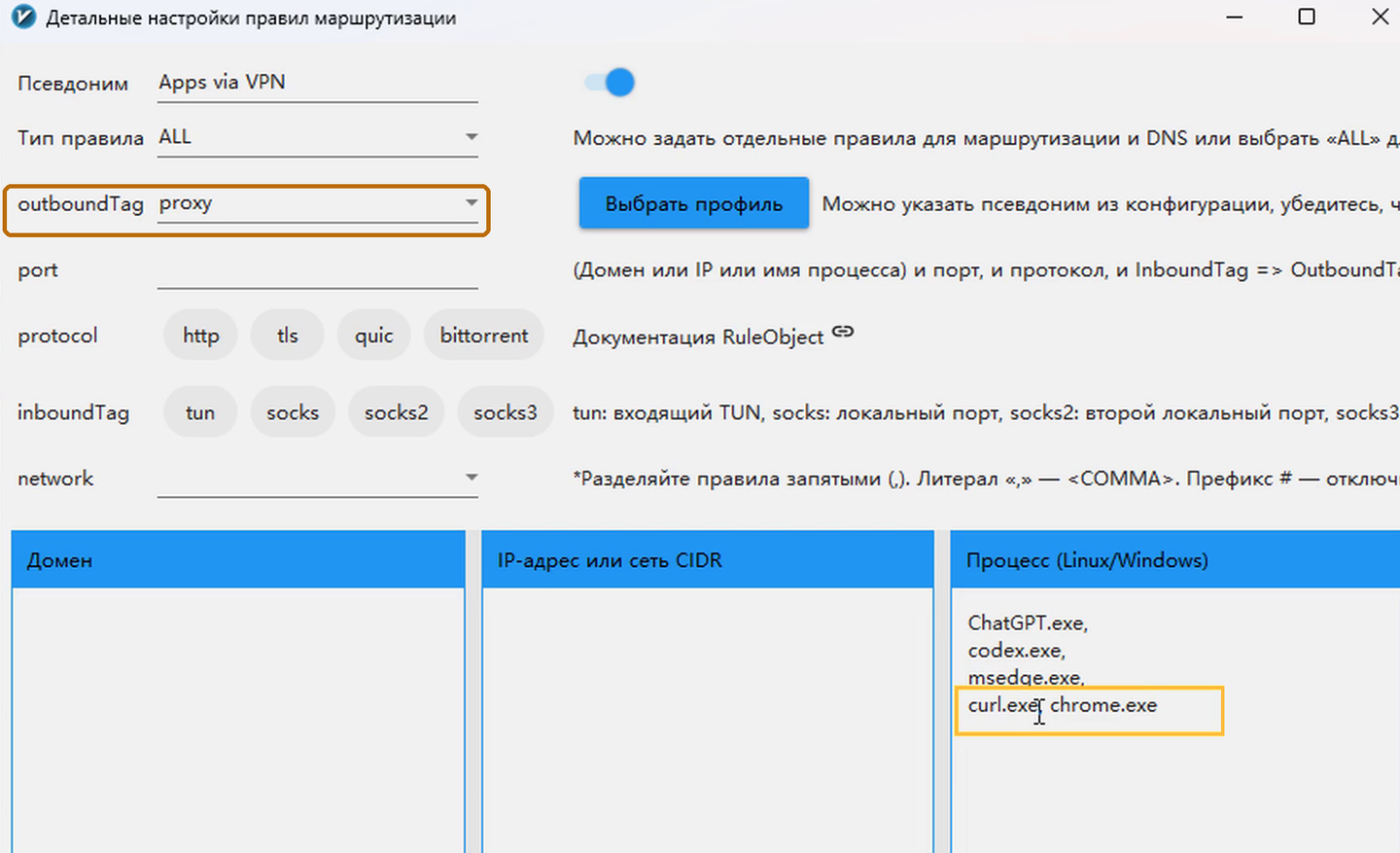
- For an application, open the separate Apps via VPN rule. Add its executable name, for example
msedge.exe, under Process, retaining the existing names. Check outboundTag = proxy. - Confirm the edited rules and save the profile. Make sure it is the active profile in v2rayN.
- In AppGuard, open Programs (“Программы”) → Synchronize with v2rayN (“Синхронизировать с v2rayN”). For a missing application, click Select EXE and choose its file.
- Open Domains (“Домены”) and synchronize with v2rayN. Check the new domain and the Windows DNS mode.
- Click Go to apply → Save settings and approve UAC. Return to the overview, refresh it and find the active blocking rule for the new executable.
Keep the two DNS lists in sync. Synchronizing AppGuard updates the list used by its system DNS protection. After adding a domain manually, also update Xray's own domain DNS configuration by running automatic setup again with the full current Domains through VPN list, as described in the second method.
Method 2. Run automatic setup again for the selected client
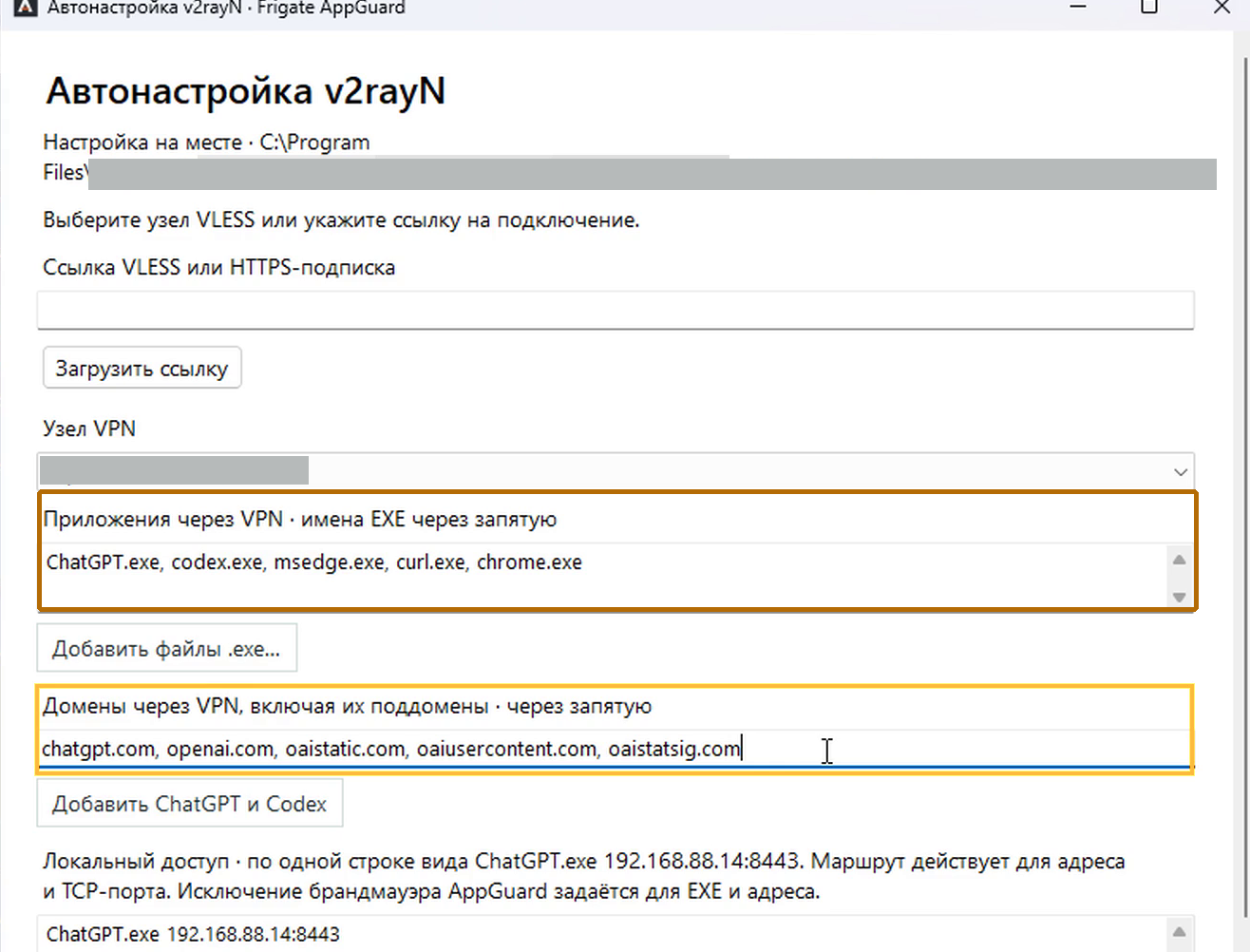
- In AppGuard, open Settings (“Настройки”) → v2rayN automatic setup (“Автонастройка v2rayN”), then choose Configure an installed v2rayN.
- Check the client path, click Continue, and retain the intended VPN node.
- Add the new executable names under Applications through VPN and new domains under Domains through VPN. Review the entire list, including earlier manual additions. Keep existing entries rather than replacing the list with a single new item.
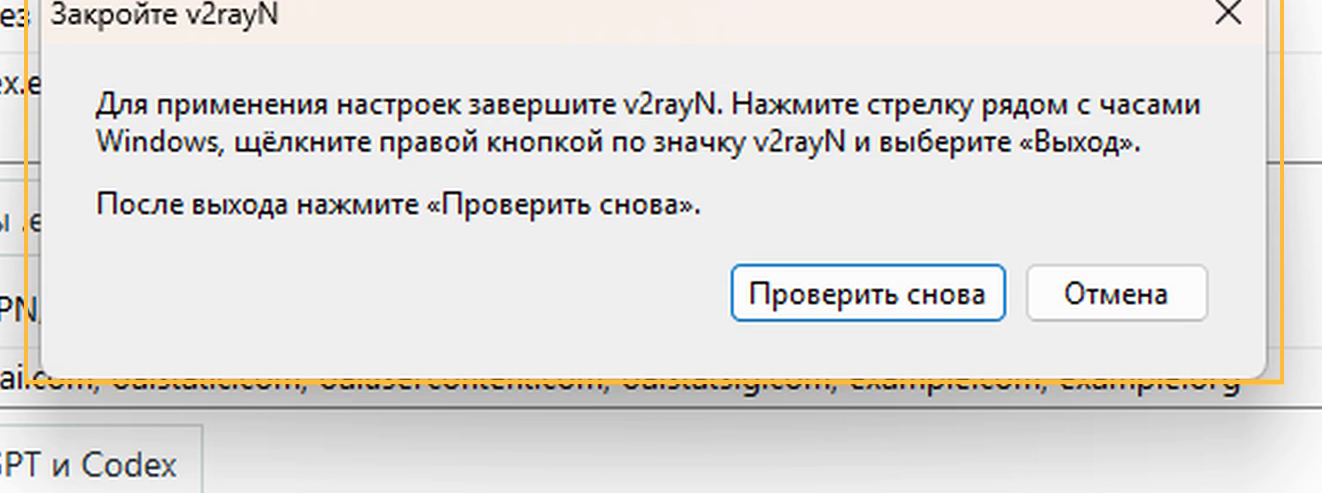
- Click Apply and check. If asked to close v2rayN, exit it from the tray and click Check again in the wizard.
- Once the client starts, check AppGuard's Programs and Domains lists, executable paths and DNS mode. Synchronize them with v2rayN if needed.
- Click Go to apply → Save settings, approve UAC and refresh the overview. Confirm an active blocking rule for the newly added executable.
Check that a selected application cannot connect directly
The v7 demonstration tested Edge and curl, with three results:
| State | Edge and curl | What it establishes |
|---|---|---|
| Protection off, TUN off | Displayed the regular connection's public IP | A baseline address for comparison |
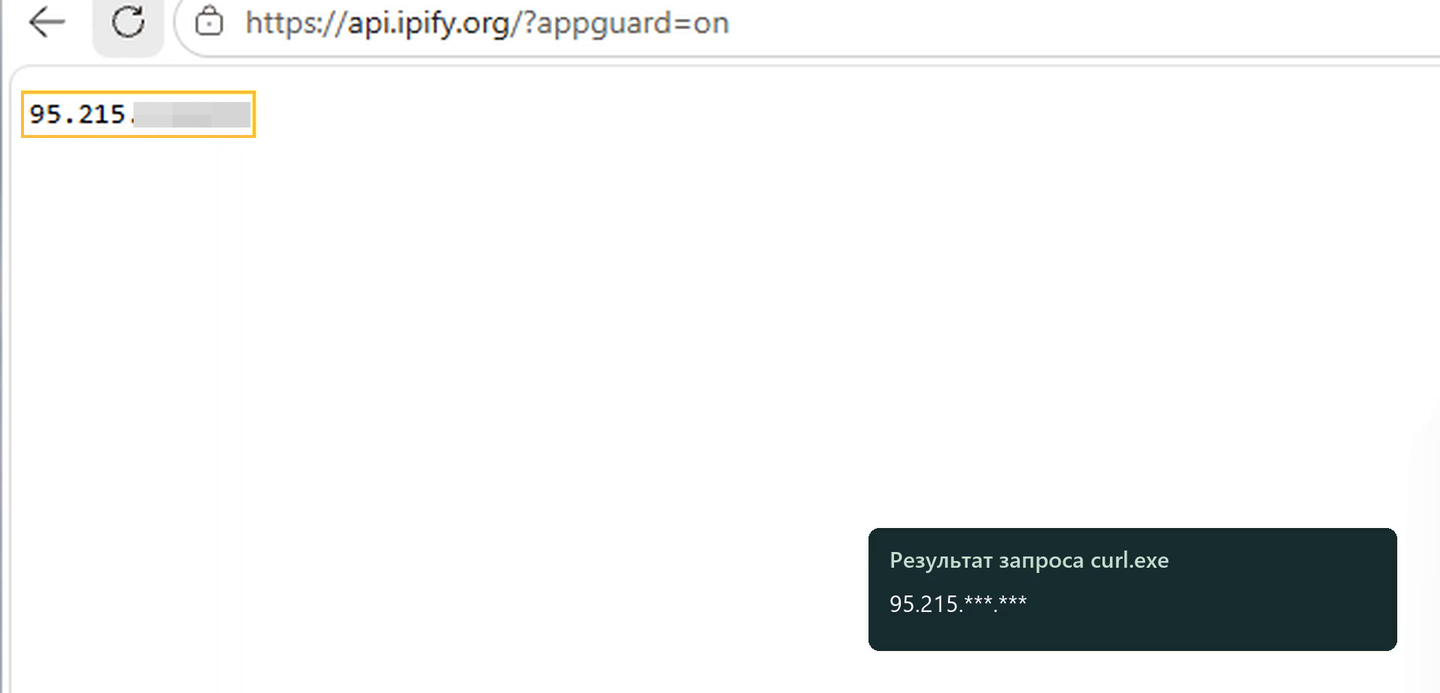
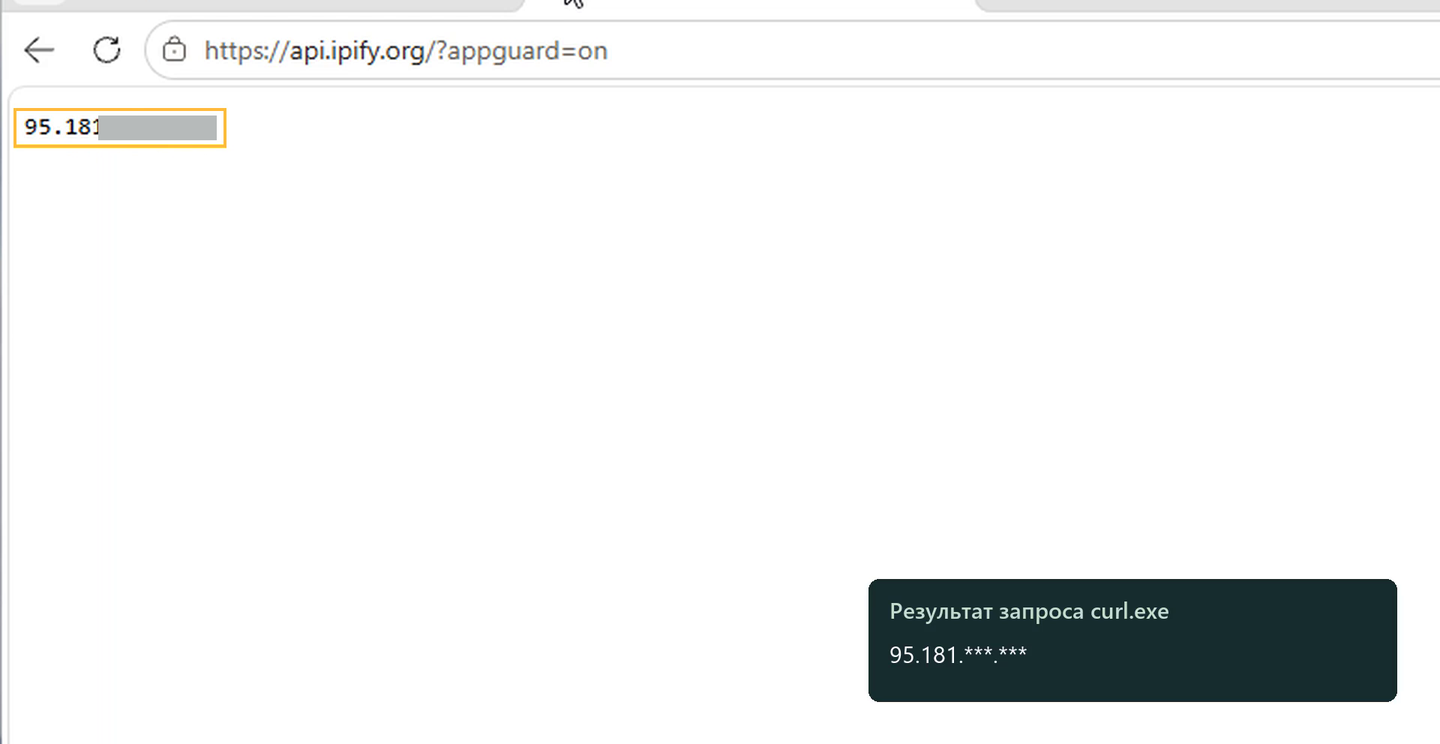
| Protection on, TUN on | Displayed the VPN IP | Requests from these applications passed through the VPN |
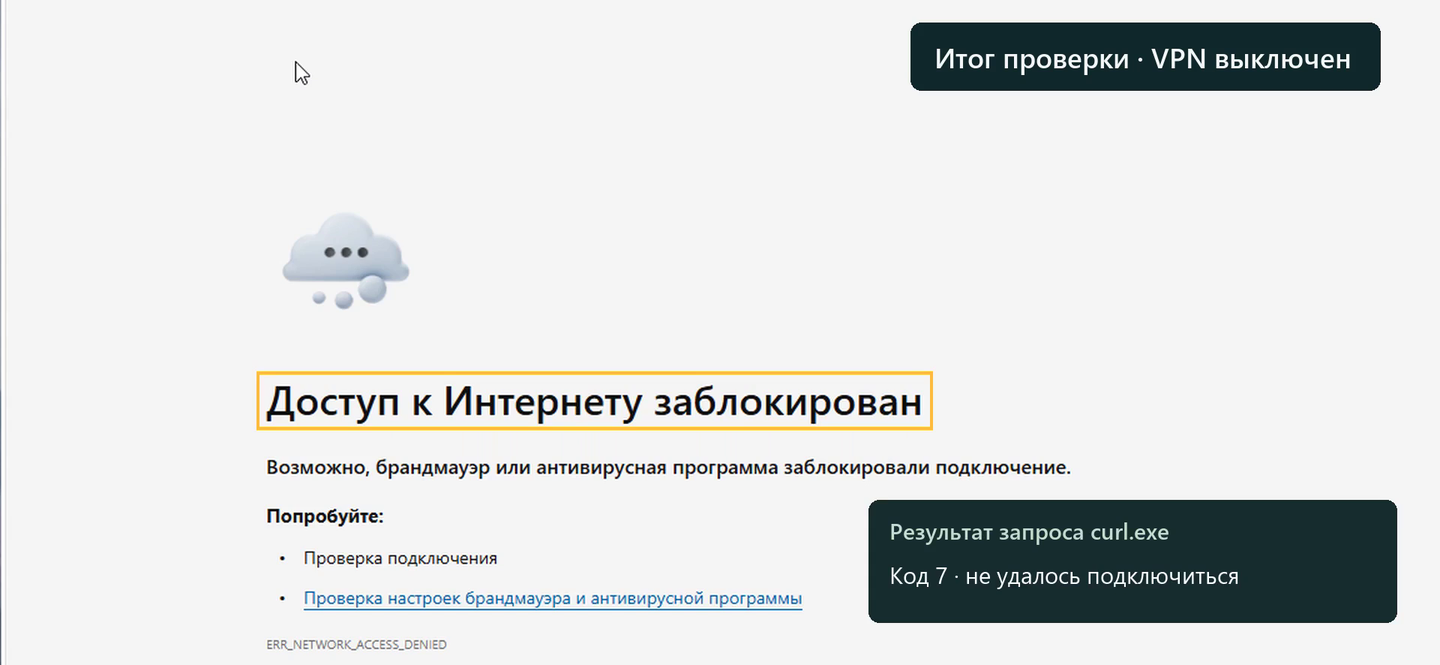
| Protection on, TUN off | Returned a connection error | Direct access for these applications was blocked in this test |
TUN and protection were restored after testing. These results do not establish tests of ChatGPT, Codex, Claude Code or IPv6, or prove the absence of DNS leaks.
Repeat the test on your computer
- Add
msedge.exeandcurl.exeto Apps via VPN or to the automatic setup's application list. Synchronize programs in AppGuard and check their full paths. To locate curl, open Start → Terminal and runwhere.exe curl; select the file you will actually run. - Save AppGuard. The overview should confirm blocking rules for both executables, and TUN should be running.
- In Edge, open the public IP check page. Run the command below in your terminal. Compare both results with the VPN IP and the regular IP recorded before installing protection.
- Keep AppGuard protection active, but switch TUN off in v2rayN. Leave Windows Firewall enabled and keep the executables in the protection list.
- Run curl again and open a new connection to the IP check page in Edge. To avoid confusing an old page with a fresh response, fully exit Edge, including background processes, then launch it again. Both protected executables should return a connection error.
- Turn TUN back on. Check the AppGuard overview and repeat the requests: they should work through the VPN again.
curl.exe --noproxy "*" --max-time 8 https://api.ipify.org/--noproxy "*" removes the influence of a separate HTTP proxy from this test while leaving TUN and firewall rules in effect. Run the same executable whose path AppGuard confirmed. If the regular IP appears with TUN off, protection for that file is unconfirmed: recheck its path, active rule and Windows Firewall profile state.
What to check for ChatGPT, Codex and other AI applications
For each application, make sure its actual network executable is included in the proxy rule, is found by AppGuard, and has an active blocking rule. If a child process or another executable makes the requests, listing the main window's executable alone does not establish protection for that traffic. Add Claude Code and other tools separately using their actual network processes.
With TUN running, perform a new network action in the application, such as sending a new request. Turn TUN off while protection remains active and repeat the action. Record the result, restore TUN and test again. Showing a previously received answer is not a new network connection. A successful Edge/curl test does not automatically verify other programs.
Test DNS separately
First check that the name is covered by the selected AppGuard DNS mode and that the application uses Windows DNS. To test fresh responses, you can clear the system cache with Clear-DnsClientCache in an administrator Windows PowerShell session, then run Resolve-DnsName chatgpt.com. The application may still retain its own cache.
Establishing the DNS route requires a separate traffic capture on the physical interface or router, using a controlled DNS request with the VPN both available and unavailable. Comparing public IP addresses does not measure this. Switching TUN off alone also does not prove that every DNS route has stopped: the DNS handler may retain a separate VPN connection. Application DoH, IPv6 and behavior after a reboot require their own checks.
Frequently asked questions
Does AppGuard provide a VPN profile?
No. You need your own compatible profile. AppGuard helps configure the client and Windows restrictions. The Proksik service can help you set up a VPN on your VPS.
Is adding ChatGPT.exe to v2rayN enough?
That sets a route. Blocking direct access also requires the actual executable path, saved AppGuard settings and a confirmed blocking rule. Then test the application itself.
Does Selected domains only affect ChatGPT alone?
No. It applies to Windows system DNS requests for those names from any application. An application's own DNS or DoH may behave differently.
Why does Check VPN succeed while my application cannot connect?
The button tests a diagnostic route. The application may use different executables, routes or DNS, or encounter a sign-in or service error. Check its proxy rule, actual executable path and AppGuard status, then test a fresh request.
New sites stopped opening after setup. How do I restore normal system DNS?
If full DNS mode was enabled and the VPN is unavailable, open AppGuard → Settings (“Настройки”) → Disable AppGuard DNS (“Выключить DNS AppGuard”). Check the state and restart v2rayN if the wizard requests it. This does not automatically remove the separate EXE protection rules.
Can I allow a local panel on port 8443 only?
You can restrict the v2rayN route to TCP port 8443. However, an AppGuard exception for an EXE/IPv4 pair covers all ports on that address. It should not be described as a single-port firewall exception.
To block direct access when the VPN disconnects, keep routes, detected executables and DNS mode consistent, then test fresh connections with TUN both on and off. Having a VPN profile or a ChatGPT.exe routing entry does not establish that direct access is blocked: verify each application you want to protect. More proxy and VPN guides are available on the Frigate Proxy blog.