
Contents
- What a SOCKS5 proxy is and how it works
- SOCKS5 versus HTTP and HTTPS proxies
- Connection details you need
- Connecting SOCKS5 in Firefox and Google Chrome
- Setting up SOCKS5 in another application or on a phone
- Checking your IP and DNS after connecting
- Why SOCKS5 will not connect
- Choosing a SOCKS5 proxy for your task
- Common SOCKS5 questions
A SOCKS5 proxy is an intermediary server that an application uses to connect to a website or another network service. The application sends its connection request to the proxy, which connects to the destination. The website usually sees the proxy’s exit IP instead of your connection’s IP.
You need the server address, port and an allowed access method: a username and password or IP-based authorisation. This guide explains connecting an existing proxy, the differences between SOCKS5 and HTTP, setup in Firefox and Google Chrome, and checking your IP and DNS afterwards.
What a SOCKS5 proxy is and how it works
SOCKS5 is the protocol an application uses to communicate with a proxy server. The application first connects to the proxy, negotiates authentication and specifies the destination. The proxy then relays data between the application and that destination.
For example, connect a browser to SOCKS5 and open an HTTPS website. The browser reaches the website through the proxy, while HTTPS protects the website connection’s contents. SOCKS5 itself does not add encryption between your device and the proxy.
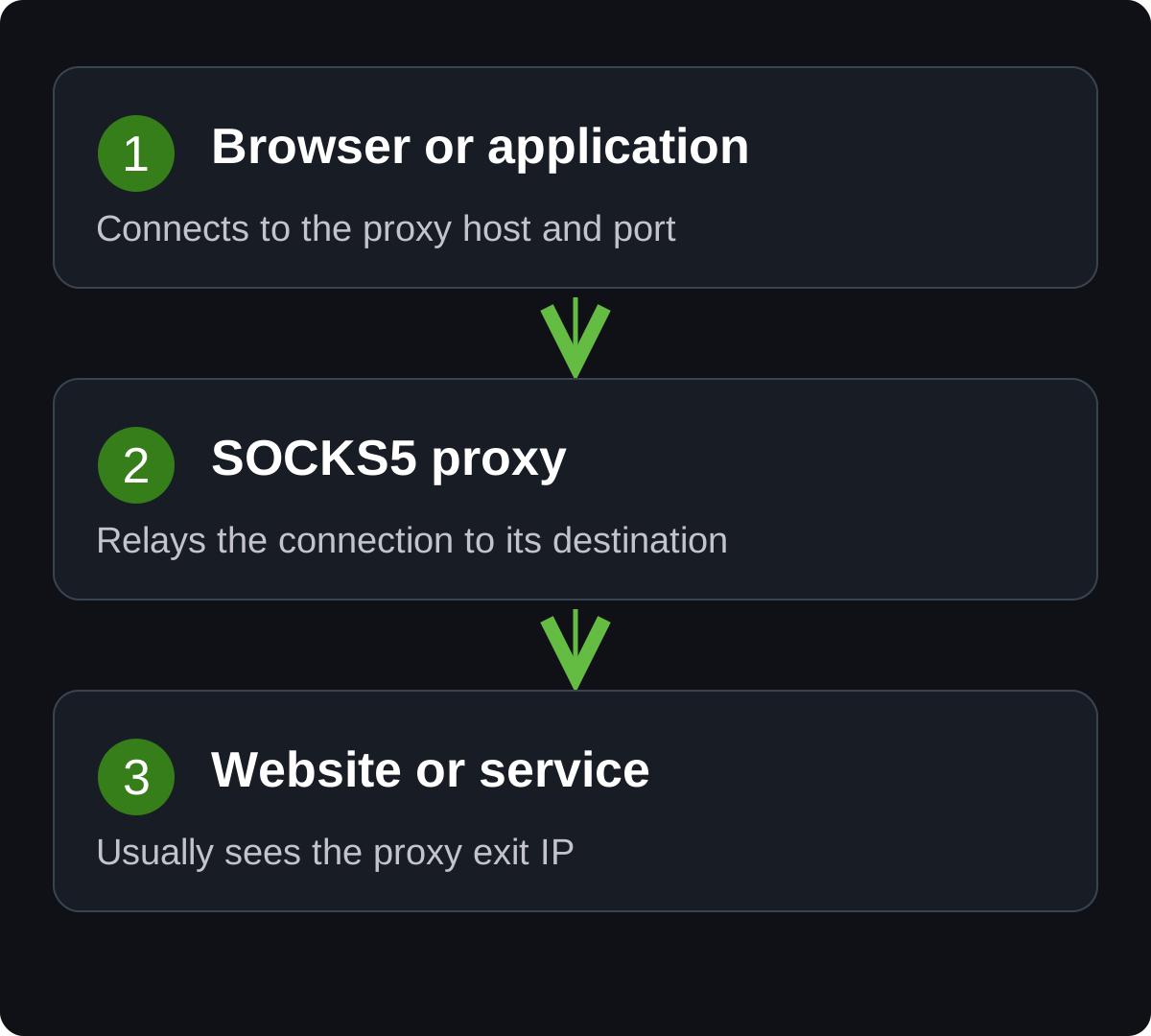
SOCKS5 is used by browsers, network clients, automation tools and other compatible applications. The standard includes TCP and UDP, but UDP requires support from both the client and server. Chrome’s browser SOCKS5 implementation does not relay UDP. Check the particular application before assuming that SOCKS5 handles every kind of traffic.
SOCKS5 and mobile proxies describe different properties. SOCKS5 is the connection protocol; mobile, datacentre and residential describe the origin of the exit IP. One mobile proxy may provide separate HTTP and SOCKS5 connection details. Read more about address types in our guide to mobile proxies.
SOCKS5 versus HTTP and HTTPS proxies
There are three options to compare: SOCKS5, an ordinary HTTP proxy and an HTTPS proxy with TLS to the proxy server. All three can open HTTPS websites. The connection protocol to the proxy and the website’s own encryption are separate properties.
| Property | SOCKS5 | HTTP proxy | HTTPS proxy |
|---|---|---|---|
| Protection between device and proxy | Not provided by an ordinary connection | Not provided | TLS encrypts the connection to the proxy |
| HTTPS websites | Supported | Through CONNECT if the server allows it | Through CONNECT inside the protected connection |
| UDP | Part of the protocol; requires compatible client and server | Ordinary CONNECT carries TCP | Ordinary CONNECT carries TCP |
| Credentials in Chrome | Unsupported; this guide uses IP-based access control | Supported by Frigate Proxy Switcher | Supported by Frigate Proxy Switcher |
| Credentials in Firefox | Supported | Supported by extension versions with HTTP/HTTPS | Supported by extension versions with HTTP/HTTPS |
| Website DNS at the proxy | Possible; depends on the client and settings | Used for browser connections | Used for browser connections |
| Proxy certificate | Not required for ordinary SOCKS5 | Not required | Requires a certificate trusted by the client |
When SOCKS5 is useful
SOCKS5 suits applications that explicitly support it, allowing connections from different applications without HTTP-request processing by the SOCKS5 protocol itself. For UDP, the standard provides UDP ASSOCIATE. Both endpoints must implement it; Google Chrome uses SOCKS5 only for TCP, so its browser connections do not benefit from UDP support.
HTTP/HTTPS proxies can also tunnel other TCP protocols through CONNECT when supported by the client and allowed by the server. They are not limited to web pages. Separate HTTP extensions such as CONNECT-UDP/MASQUE can carry UDP, but ordinary HTTPS proxy connection details do not establish support for those extensions.
When an HTTPS proxy is useful
Its main advantage is a protected connection between your device and the proxy. TLS protects authentication and data on that link from network observers. The destination hostname in a CONNECT request is inside that protected connection too. The proxy operator still knows the destination.
Ordinary SOCKS5 username/password authentication does not itself encrypt the password. The destination website’s HTTPS does not protect that separate exchange with the proxy. With an HTTPS proxy, credentials travel inside TLS, and certificate validation lets the client authenticate the proxy server.
Chrome offers another practical reason to choose it: our extension supports HTTP/HTTPS proxy credentials there. Chrome does not support SOCKS5 username/password authentication; the setup in this guide instead uses provider-side IP authorisation. If your public IP changes frequently, password-authenticated HTTP/HTTPS avoids updating an IP allowlist.
Anonymity: headers and HTTPS tunnels
When processing an ordinary HTTP request, a proxy can add Forwarded or X-Forwarded-For containing the client’s source IP. Whether it sends that IP depends on the implementation and settings. A Via header can identify intermediaries without necessarily revealing your IP. Adding HTTP headers is not part of the SOCKS5 protocol.
An HTTPS website accessed through CONNECT works differently. With end-to-end TLS and no interception, the proxy relays an encrypted stream and cannot insert the source IP into the HTTP headers inside it. This applies to CONNECT through both HTTP and HTTPS proxies, so SOCKS5 is not inherently more anonymous in this situation.
TLS to an HTTPS proxy does not prevent that proxy from processing an unencrypted HTTP request after receiving it: it can still modify headers when you visit an ordinary HTTP website. SOCKS5 also does not hide unencrypted traffic from the server operator. Choose a trusted provider and check how the connection actually behaves.
Speed and DNS depend on the connection
Neither protocol guarantees better speed. SOCKS5 without an additional tunnel does not establish TLS to the proxy, while an HTTPS proxy adds that protected link. Actual results depend on latency, load, connection reuse and implementation; HTTP/2 support on an HTTPS proxy can matter too. Compare the same workloads on particular servers.
Both approaches can resolve website names at the proxy. SOCKS5 behaviour depends on the client and settings; with HTTP/HTTPS, the browser supplies the destination hostname to the proxy. The protocol name alone does not guarantee the absence of every DNS leak. Switching from SOCKS5 to HTTPS also does not automatically change the IP’s country, reputation, cookies or browser fingerprint.
See the Chromium proxy documentation, CONNECT in RFC 9110 and the Forwarded header specification for technical details.
Connection details you need
Get the details from your provider’s account dashboard or your server administrator. Check four things before configuring the application:
- Protocol: SOCKS5 specifically. An HTTP endpoint may use a different address or port.
- Address: the proxy server’s IP address or hostname.
- Port: the number supplied by the provider. A common default is 1080, but do not substitute it for the assigned port.
- Access method: a username and password or an allowed client IP.
An example with a username and password:
socks5://demo_user:demo_password@203.0.113.10:1080An example without credentials, for a server using IP-based access control:
socks5://203.0.113.10:1080These addresses and credentials are fictitious. Replace them with your own. Input formats vary between applications; use separate server, port and credential fields when provided.
IP authorisation allows your public source IP to connect to the proxy. This is the address you connect from, rather than the proxy’s exit IP or a local address such as 192.168.x.x. If your connection goes through a VPN, the provider may see the VPN address. Update the allowed address after changing networks or when your dynamic public IP changes.
Rotation is a separate property. It controls when the exit IP changes and does not replace authentication. A SOCKS5 service can have either a fixed or rotating exit IP; check the provider’s terms.
Connecting SOCKS5 in Firefox and Google Chrome
These two browsers have different authentication support. Firefox supports SOCKS5 with a username and password. Google Chrome connects to SOCKS5 without those credentials, with access restricted by IP on the proxy server. If you only have password-authenticated SOCKS5 details, ask your provider for IP-based access or an HTTP endpoint for Chrome.
Firefox: SOCKS5 with a username and password
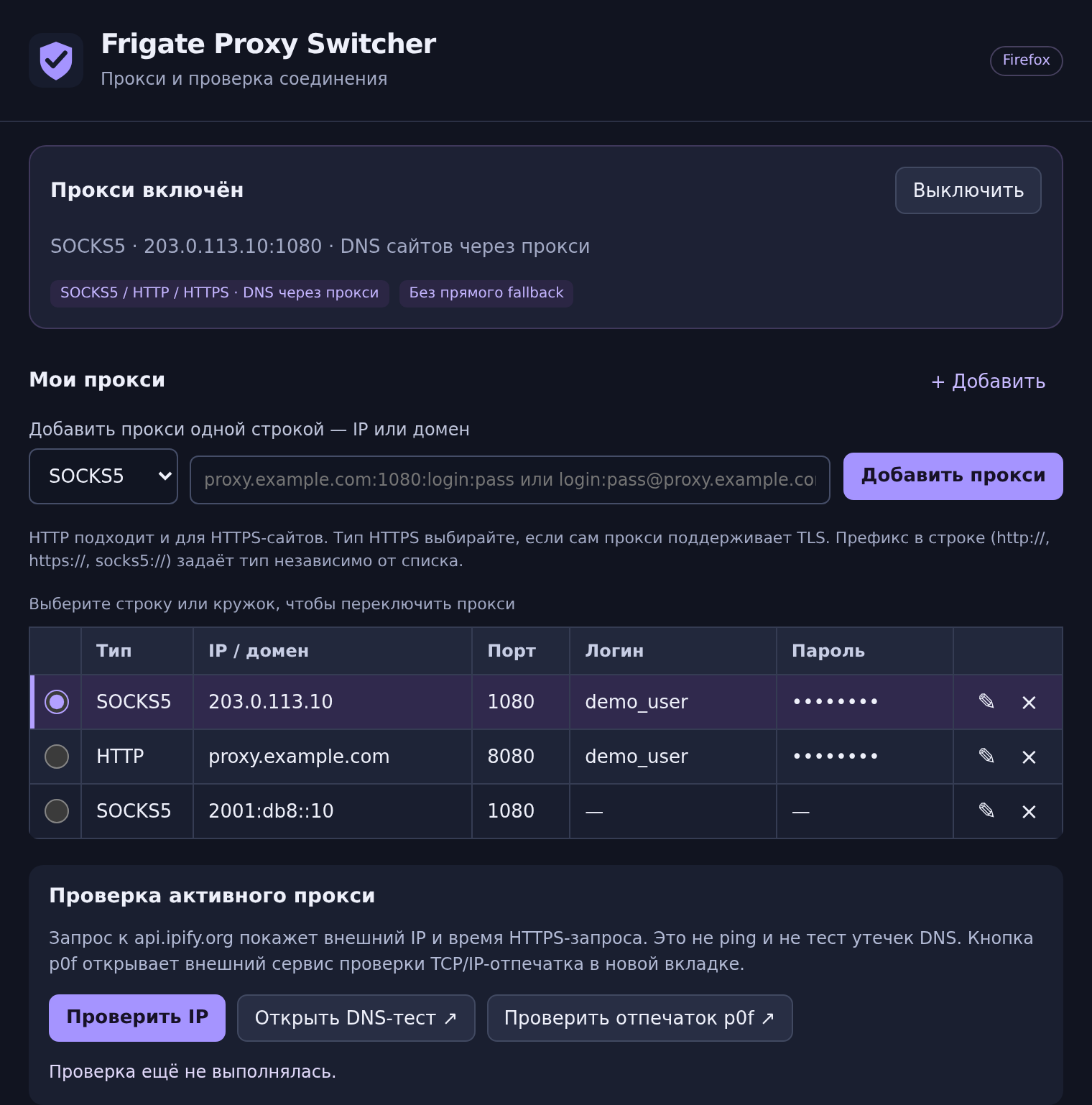
- Install Frigate SOCKS5 Switcher from Mozilla Add-ons.
- Open the extension and select SOCKS5.
- Paste the supplied
host:port:username:passwordline or fill in the host, port and credential fields separately. - Add the proxy, then select its row. Wait for “Прокси включён” (Proxy enabled).
- Click “Проверить IP” (Check IP) and compare the result with the expected proxy address.
Google Chrome: SOCKS5 with IP authorisation
- Enable IP authorisation with your proxy provider and add the current public IP of the device or network you connect from. Confirm that this access method is available for your SOCKS5 service.
- Install Frigate Proxy Switcher from the Chrome Web Store.
- Open the extension and change the type from HTTP to SOCKS5.
- Enter the proxy address and port, leaving username and password empty. You can paste a line such as
socks5://203.0.113.10:1080. - Add the entry, select its row and click “Проверить IP” (Check IP).
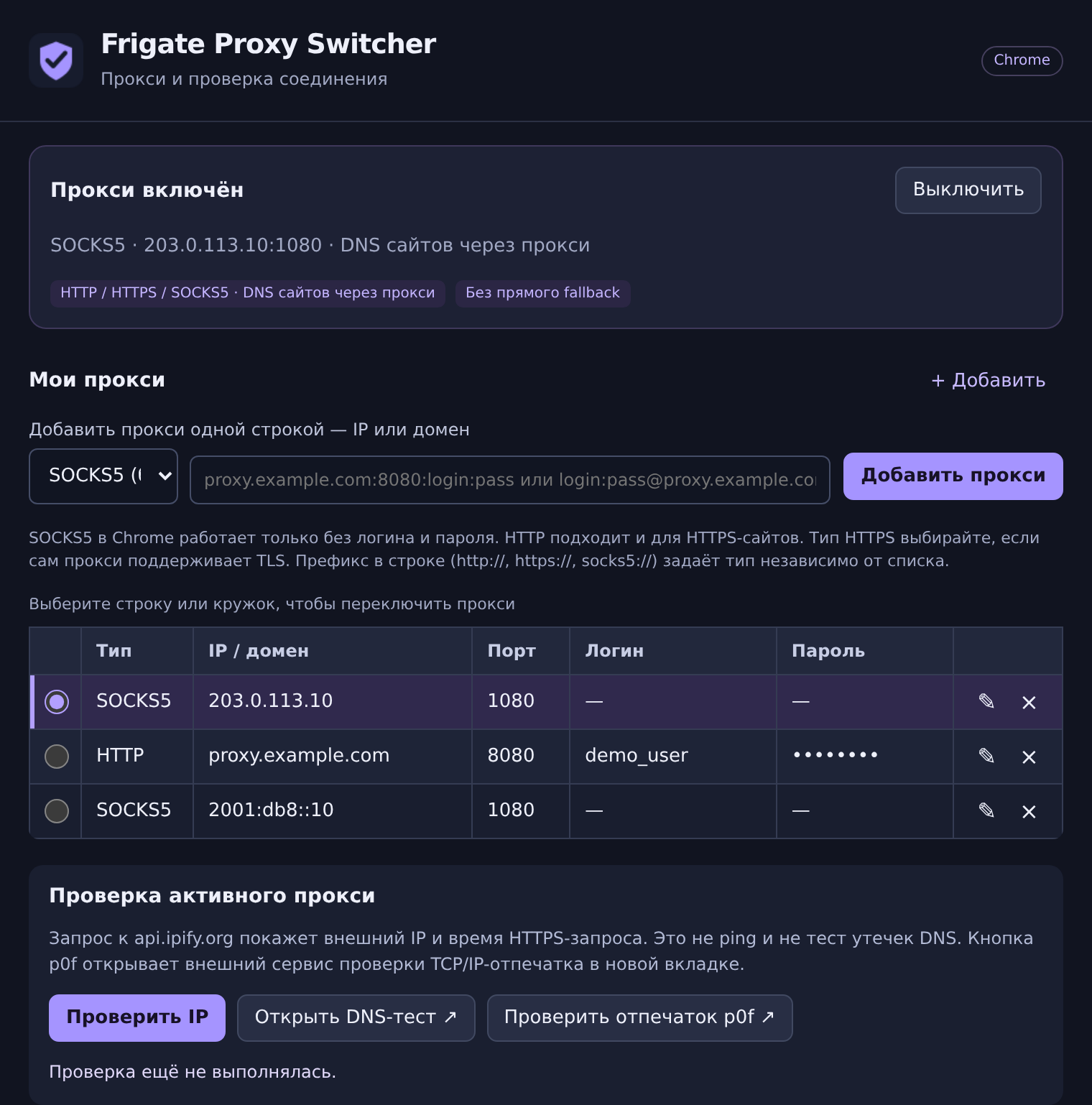
This is a limitation of Chrome’s built-in SOCKS5 client; the extension cannot add username and password support to it. For password authentication in Chrome, use separate HTTP/HTTPS details. Changing the type in a form does not change the server’s protocol.
The selected proxy applies to supported web requests in the browser profile. Grant permission separately for private windows, then check the IP inside that private window. See the Frigate Proxy Switcher review for Chrome and Firefox for importing lists, switching servers and diagnostics.
Setting up SOCKS5 in another application or on a phone
Find the application’s network or connection settings. It needs explicit support for SOCKS5 and the chosen authentication method. Select the type, enter the server and port, then provide a username and password only if required and supported by that client.
A field labelled “Proxy” does not necessarily mean SOCKS5 support. Entering a different port in an HTTP proxy field does not make it SOCKS5. Check the application’s documentation.
On a phone, the client matters too: an app needs its own SOCKS5 support or a compatible networking solution. Installing a browser extension on your computer does not configure your phone or other devices.
Creating your own proxy server is a separate step. Configure the server and access first, then enter its details into the application. For a VPS, start with the Proksik setup overview; for a mobile farm, read the ProxyFarm review.
Checking your IP and DNS after connecting
- Check the external IP. Enable the intended server and use the extension button or an IP-checking service in the same application. Compare the result with your provider’s information.
- Open the target website again. Existing connections can survive a proxy switch. Use a new tab or reconnect in your application.
- Check DNS. Use the extension’s DNS-test button or open the ToDetect DNS test. Run it on the website and assess the detected resolvers.
- Check what happens when the proxy is unavailable. The application should not silently fall back to a direct connection if your task requires preventing that. Do not test this with the Disable button, which intentionally removes the proxy settings.
SOCKS5 destination names can be resolved on the device or on the proxy. Frigate SOCKS5 Switcher sends the hostnames of handled websites to the proxy; Chrome also resolves website names through SOCKS5. However, resolving the proxy’s own hostname can require a local DNS lookup before connecting. Use the proxy server’s IP to avoid that particular lookup.
A DNS resolver in another country is not by itself proof of a leak. Compare the results with the resolvers your provider uses. Checking one external IP also does not establish routing for every application or traffic type. More details are in our proxy testing guide.
Why SOCKS5 will not connect
| Situation | What to check |
|---|---|
| Server does not respond | Host, port, access expiry, server availability and network restrictions |
| Authentication fails | Credentials, allowed public IP and the access method enabled by the provider |
| Chrome rejects authenticated SOCKS5 | Use IP authorisation without credentials, or obtain HTTP connection details |
| The old IP is still displayed | Check the active row, extension conflicts and whether you opened a new connection |
| IP changes but a website fails | Check website availability, exit-IP restrictions and proxy-side rules |
Avoid changing the port, protocol and access method all at once. Verify the supplied details first, then try those same settings in a compatible client. This makes it easier to separate application errors from server problems.
Choosing a SOCKS5 proxy for your task
First decide which application will use the connection. Firefox supports SOCKS5 with a username and password. Chrome requires SOCKS5 without those fields and an allowed source IP on the provider’s side, or an HTTP/HTTPS proxy with authentication. If you need protection between your device and the proxy, choose an HTTPS proxy using TLS and a trusted certificate.
Then choose the IP’s country and origin, a fixed or rotating exit address, connection limits and traffic allowance. If you need UDP, confirm support with both the client and provider. The name SOCKS5 does not define these service terms.
The Frigate Proxy mobile proxy catalogue offers connection options. Before ordering, confirm the available protocols and IP-authorisation support, especially if you plan to use Google Chrome.
Common SOCKS5 questions
Is SOCKS5 a VPN?
No. SOCKS5 is how an application connects to a proxy. A VPN can route device traffic at the network level, with coverage determined by its settings. Enabling SOCKS5 in a browser does not automatically configure every other application.
Which is safer: SOCKS5, HTTP or an HTTPS proxy?
An HTTPS proxy has the advantage for protecting the device-to-proxy link because it uses TLS. Ordinary SOCKS5 and HTTP do not encrypt that link. Assess anonymity separately: consider source-IP headers on ordinary HTTP requests, end-to-end TLS for HTTPS websites, DNS and browser settings.
Why does authenticated SOCKS5 work only in Firefox?
When comparing Firefox with Google Chrome, Firefox is the one that supports this SOCKS5 authentication method. Chrome requires empty credential fields and server-side IP access control for this setup. This is not a universal SOCKS5 limitation: other applications can support a username and password too.
Does SOCKS5 change the browser fingerprint?
It changes the network route and usually the exit IP. It does not clear cookies or automatically change the User-Agent and other browser properties. A proxy alone therefore cannot guarantee the absence of CAPTCHAs or website restrictions.
Where can I find the technical specification?
The base protocol is specified in RFC 1928, and username/password authentication in RFC 1929. Chrome’s SOCKS5 limitations are documented in the Chromium proxy documentation.