Contents
- What Frigate SOCKS5 Switcher does
- How to install it in Firefox
- Adding SOCKS5 with a username and password
- Switching servers and importing a list
- How DNS through SOCKS5 works
- Checking your IP and DNS after connecting
- Password storage and permissions
- Who the extension is useful for
- Questions before installing
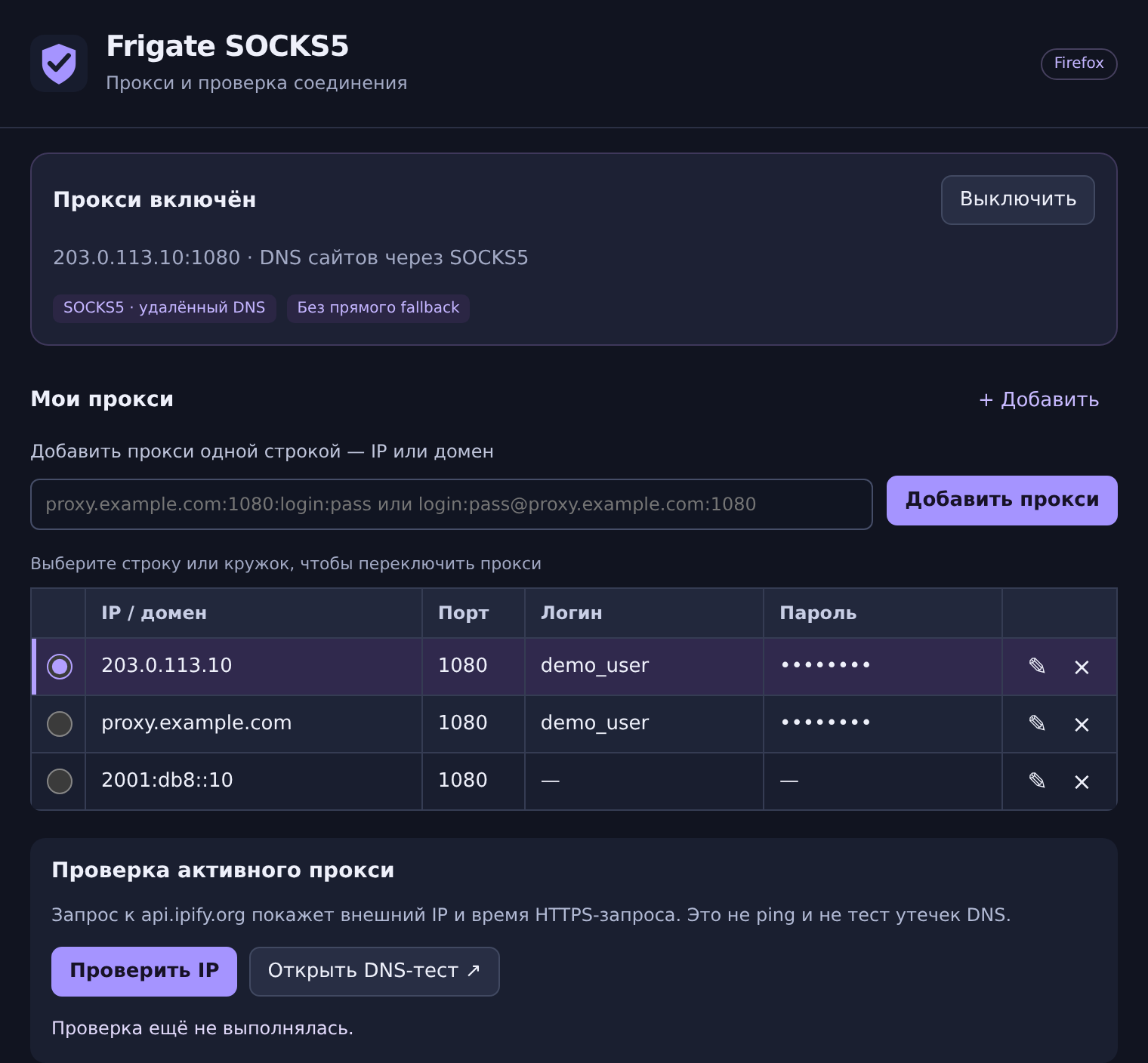
To connect a SOCKS5 proxy in Firefox, you need its server address, port and, where authentication is enabled, a username and password. Frigate SOCKS5 Switcher saves these details in a list. Select a row, and new browser web requests use that server. You can add another proxy and check your external IP in the same window.
This review explains installation, SOCKS5 authentication, list import and DNS checks. It covers build 0.1.6 for Firefox Desktop. Check the Frigate SOCKS5 Switcher listing on Mozilla Add-ons for the version currently available to install. The screenshots show the actual Russian-language interface with demonstration data.
What Frigate SOCKS5 Switcher does
The extension works with SOCKS5 proxies you already have. Get connection details from your provider or create your own server, then use Switcher to connect it to Firefox.
- SOCKS5 with or without username and password authentication. Server addresses can be IPv4, IPv6 or domain names.
- One-line setup. Paste the connection details without splitting them into separate fields.
- A saved proxy list. Each proxy takes one row. The active server is highlighted, and passwords are masked.
- List import. Entries are validated before being added, and duplicates are skipped.
- Website DNS through SOCKS5. For web requests handled by the extension, Firefox sends the destination hostname to the proxy.
- An external IP check. A button sends a request through the selected connection and displays the result.
- A separate DNS-test button. It opens an external service that lists the DNS resolvers it detects.
The extension stores connection details; you still need access to a working SOCKS5 server. This build does not support HTTP proxies or SOCKS4. You can, however, browse both HTTP and HTTPS websites through SOCKS5.
How to install it in Firefox
Download Frigate SOCKS5 Switcher 0.1.6 — XPI file, 24 KB
To install from a file, save the XPI to your computer. In Firefox, open about:addons, click the gear icon and select “Install Add-on From File…”. Choose the downloaded file and confirm installation. You can also install the extension from Mozilla Add-ons:
- Open the Frigate SOCKS5 Switcher page on Mozilla Add-ons in Firefox.
- Click the installation button and confirm the requested permissions.
- Open the browser’s extensions menu and select Frigate SOCKS5 Switcher. Pin its button to the toolbar if you use it frequently.
- To use private windows, grant the extension permission in its settings:
about:addons→ Frigate SOCKS5 Switcher.
The reviewed build requires Firefox Desktop 140 or later. The proxy starts disabled on a fresh installation. Adding an entry does not activate the connection until you select it.
Adding SOCKS5 with a username and password
Paste the connection details into the one-line proxy field, labelled “Добавить прокси одной строкой — IP или домен”. For example:
203.0.113.10:1080:demo_user:demo_passwordYou can also put the credentials before the server address:
demo_user:demo_password@proxy.example.com:1080Click “Добавить прокси” (Add proxy). The entry appears in the table. Click its row or the radio button on the left. The status changes to “Прокси включён” (Proxy enabled), and the selected server is highlighted.
For individual inputs, expand “Добавление по полям / редактирование” (Add by fields / edit). Give the entry a useful name and enter its address, port, username and password. Leave both credential fields empty for a server without authentication.
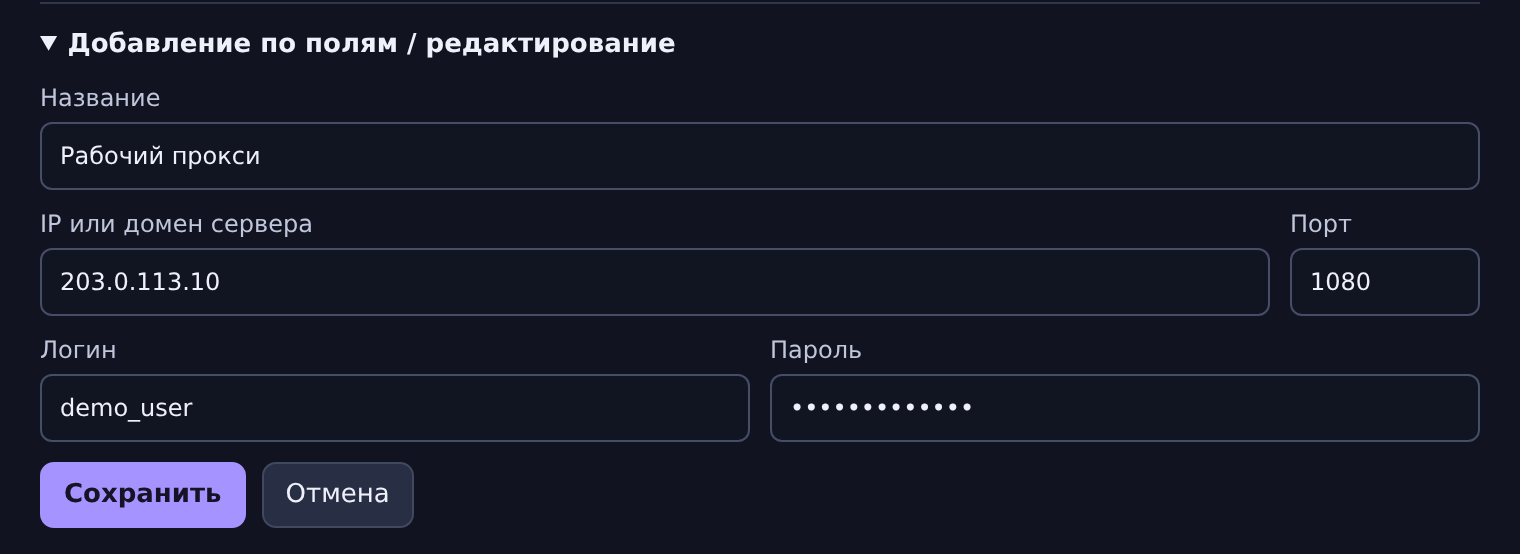
The examples demonstrate the input format. Their addresses are reserved for documentation and are not working proxies. Replace them with your server’s details. Do not add https:// or a page path to the server address field.
Switching servers and importing a list
Click another table row to switch servers. The selected SOCKS5 applies to new web requests across the Firefox profile, including other tabs. Existing connections may remain open for a while. After switching, open a website in a new tab and repeat the IP check.
To add several servers, expand “Импорт списка” (Import list). Enter one proxy per line and click “Импортировать” (Import).
203.0.113.10:1080:demo_user:demo_password
proxy.example.com:1080:demo_user:demo_password
socks5://demo_user:demo_password@203.0.113.20:1080
[2001:db8::10]:1080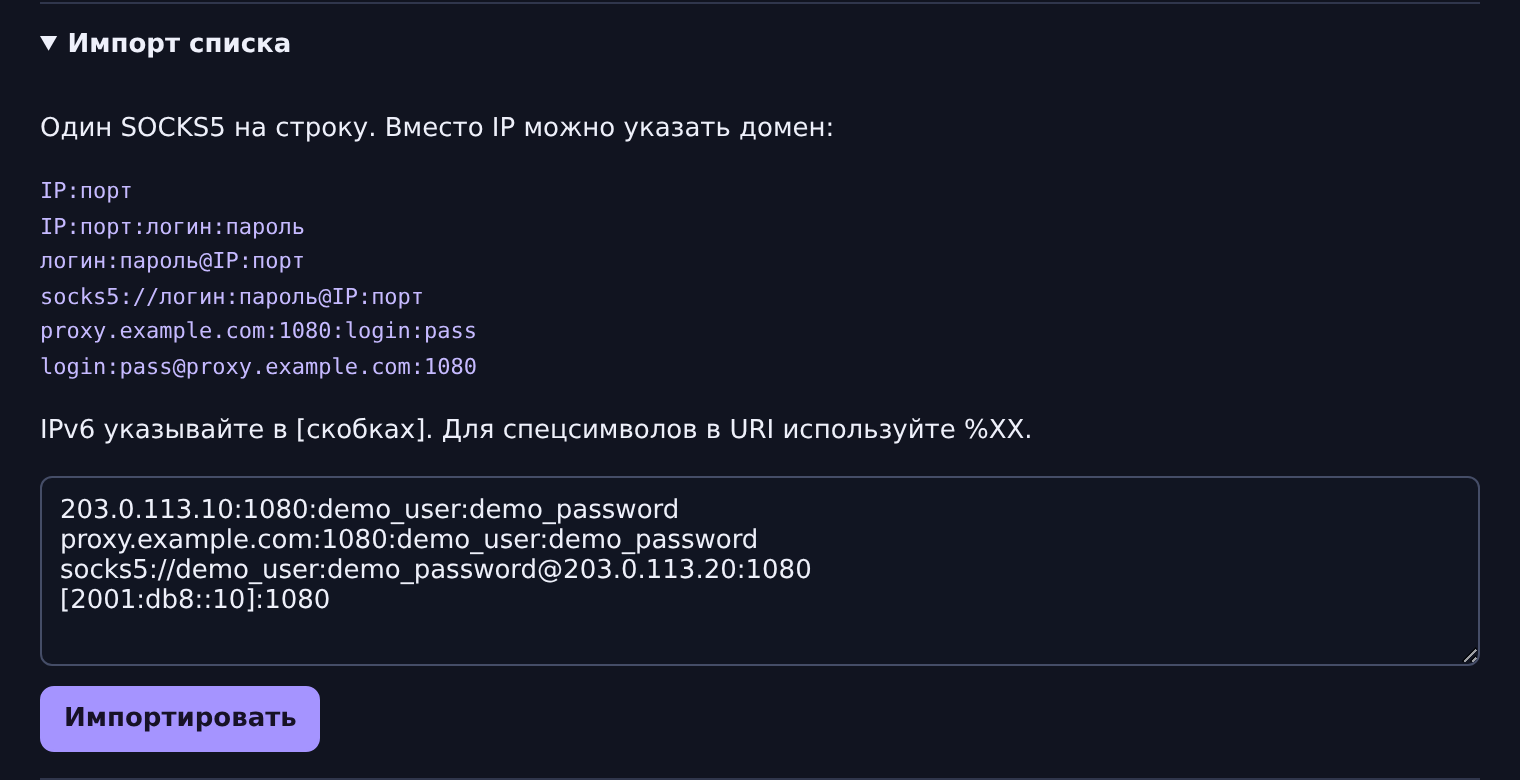
If an entry is invalid, the extension reports the problem before adding the list. With a socks5:// URI, encode special characters in credentials using %XX. Duplicate connection entries are skipped.
Use the pencil button to edit an entry and the cross to delete it. Disable an active server before editing or deleting it. “Выключить” (Disable) removes the extension’s routing. Firefox then uses its previous settings, which may include a manually configured or system proxy.
How DNS through SOCKS5 works
When you open a website by name, its address needs to be resolved. For web requests managed by Switcher, Firefox sends the destination hostname to the SOCKS5 server for resolution. Mozilla’s API calls this setting proxyDNS.
While the proxy is active, the extension also disables DNS prefetching and WebRTC. When you disable the proxy, it clears its own restrictions on those settings. The configured request route does not include automatic fallback to a direct connection if the selected proxy fails.
The website’s hostname and the proxy’s hostname are resolved at different stages. If you enter proxy.example.com as the server, Firefox must find that server’s address before it can connect. That lookup may use local DNS. Enter the proxy’s IP address if you need to avoid this particular lookup.
The extension controls the Firefox web requests available to its API. Other applications, some internal browser connections and Mozilla-restricted pages need separate checks. Mozilla documents the routing parameters in its ProxyInfo reference.
Checking your IP and DNS after connecting
Activate the required proxy and click “Проверить IP” (Check IP). The extension sends an HTTPS request to ipify through the selected connection. A successful response shows the external IP and total request time in milliseconds.
This measures the complete HTTPS request. The proxy, network and checking service all affect the result. It is not a download-speed measurement, an ICMP ping or a DNS-leak test.
For DNS, click “Открыть DNS-тест” (Open DNS test). In build 0.1.6, this opens the ToDetect DNS-leak test. Run the test on that page and compare the detected resolvers with those expected from your proxy provider. A DNS resolver may have a different IP or country from the proxy’s exit IP; that alone does not establish a leak.
If the extension warns about DNS/WebRTC settings or another add-on controlling the proxy, resolve the Firefox settings conflict first. Then reconnect and repeat the checks.
If the IP check fails, verify the address, port, credentials, access expiry and server availability. The ipify service may also be unavailable. A failed check does not automatically disable the proxy. For a broader troubleshooting process, see our guide to checking whether a proxy works.
Password storage and permissions
Server details are stored locally in the Firefox profile, without cross-device synchronization or additional encryption supplied by the extension. Passwords are masked in the table. When editing an entry, you can retain its saved password without typing it again.
Firefox sends the password to the SOCKS5 server you specify for authentication. It is not sent to the IP-check service. SOCKS5 itself does not encrypt the connection to the proxy; HTTPS websites still use their own HTTPS encryption.
Proxy control and URL permissions support request routing, storage keeps the server list, and privacy permissions control the DNS and WebRTC settings. The current code has no background telemetry or automatic requests to checking services. The ipify request and external DNS-test page are triggered by user buttons.
Who the extension is useful for
Frigate SOCKS5 Switcher suits Firefox users who want several SOCKS5 connections within reach. Save the details once, select another server when needed and check the exit IP without re-entering the settings.
You can connect a SOCKS5 from the Frigate Proxy mobile proxy catalogue or use your own server. Farm owners can create access in ProxyFarm software and transfer its connection details to the extension. For a personal VPS, there is also Proksik. In each case, select the SOCKS5 endpoint.
This build selects one active SOCKS5 for the browser profile. It does not provide different simultaneous proxies per tab, domain-based rules or scheduled automatic switching between servers.
Questions before installing
Does it change the IP of every application?
Its settings apply to the Firefox web requests it handles. Configure another browser or a separate application independently.
Can I use a domain instead of an IP?
Yes, in one-line input, list import and separate fields. Remember that the proxy hostname must be resolved before Firefox connects to it.
Will requests connect directly if SOCKS5 stops responding?
Automatic direct fallback is disabled for requests managed by the extension. Disabling or removing the add-on itself removes its routing, which changes how those connections are handled.
Can I use it in a private window?
Yes, after granting the extension permission to run in Firefox private windows.
Open Frigate SOCKS5 Switcher on Mozilla Add-ons. After installation, add your SOCKS5 server, select its row and check the IP before browsing.