Contents
- What is ProxyFarm, and who is it for?
- The dashboard: checking farm status
- Connecting USB modems and LTE routers
- Creating a proxy and checking its external IP
- IP rotation: manual, timed and by link
- Network fingerprints, limits and bulk actions
- The client portal and staff access
- Diagnostics, SIM balance and updates
- Getting started with ProxyFarm
- Frequently asked questions about the software
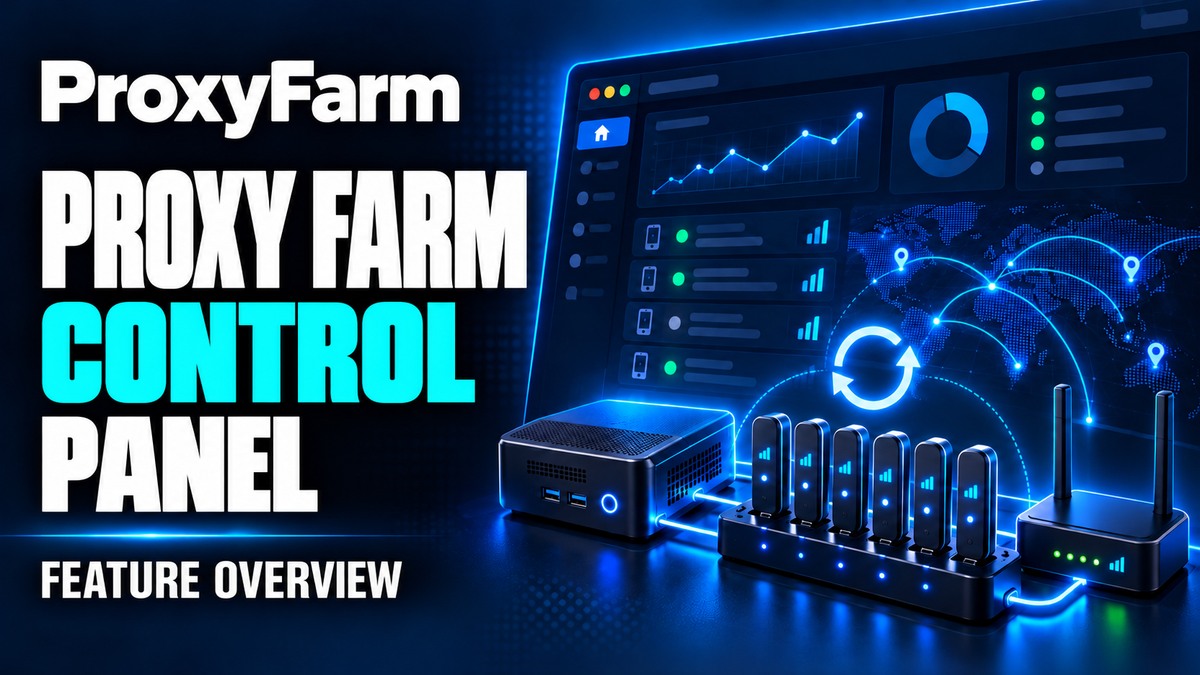
Managing one cellular modem manually is straightforward. With several devices, you need to monitor connections, create proxies, rotate IP addresses and distribute access. ProxyFarm is mobile proxy farm management software that brings these tasks into one web panel. It shows device status, connection settings and the proxies assigned to each client.
ProxyFarm is developed by Frigate Proxy. This review covers version 1.12.55 and a practical workflow: connect a device, create a proxy, check its external IP, configure rotation and give a client access. The description was checked against the interface and implementation on October 29, 2026.
What is ProxyFarm, and who is it for?
ProxyFarm runs on the farm's management computer and works with connected USB cellular modems and supported LTE routers. You open the panel in a browser to manage devices and proxies from one interface.
It suits owners of a mobile proxy farm, whether they use the connections themselves or provide them to clients. For example, you can create several proxies on a selected connection, assign them to a recipient, set a traffic quota and provide a separate client portal.
This article covers the software. For the physical structure, components and router placement, see our proxy farm assembly page. If you are building your own hardware setup, see the guide to setting up a mobile proxy farm.
The dashboard: checking farm status
The dashboard is a useful starting point for daily checks. It shows online devices, active proxies, traffic and signal strength. It also displays CPU load, memory and disk usage, and rotation history.
If a connection goes down, you do not have to open every modem in turn. Spot the change on the dashboard, then open the relevant device card to check its connection status, carrier and technical details. The event log helps establish when the issue started and which actions have already taken place.
Connecting USB modems and LTE routers
Both device types appear in the Modems section, but the setup steps differ.
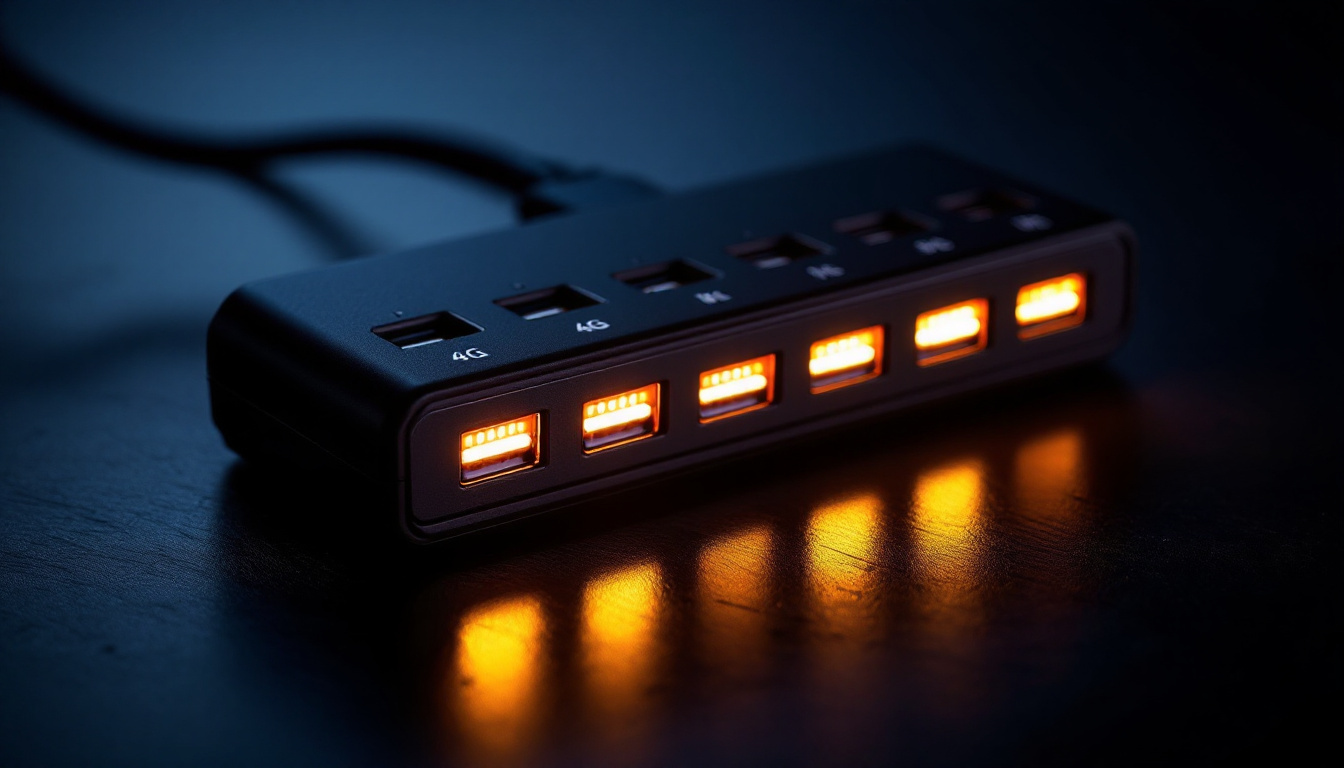
- USB modem. Connect the device to the farm computer by USB, using a suitable hub where needed. Assign a free port number to the detected modem. Its card shows the carrier, signal, APN and connection status.
- LTE router. First create a network segment in the Network section. Then select the segment, driver and device address. You can test connectivity before adding the device. Supported models can be added individually or across a range of subnets.
For LTE routers, a separate Ethernet interface on the management computer is recommended: one for the main internet connection and another for the switch connecting the routers. This arrangement matters for correct passive network fingerprint operation. You can add another interface with a USB-to-Ethernet adapter if needed. USB modems do not require a second Ethernet port.
Before connecting hardware, check support for the specific model, firmware and driver. The current list is on the ProxyFarm product page.
Setting a USB modem's APN manually
The APN is normally selected automatically. If your SIM requires a different value, open APN in the USB modem card, choose manual mode and select a carrier preset or enter your own value.
The setting is stored for that SIM and USB port. Applying it reconnects the modem. Confirm the result by checking that internet connectivity returns: a Saved message confirms the setting was recorded, but does not yet prove the connection is working. The card shows the network-reported APN and selected configuration mode separately. This dialog configures USB modems only. For an LTE router, APN configuration depends on its model and firmware.
Creating a proxy and checking its external IP
You can create a proxy from the main Proxies section or a device card. The basic sequence is the same:
- Select the connection. Choose the modem or LTE router that should carry the traffic.
- Select a protocol and a free listening port. The device's channel number and the port used to connect to the proxy are different settings.
- Configure authentication. For example, a SOCKS5 proxy can use a username and password, which you can generate in the form.
- Set the additional options. Choose a network fingerprint and assign the proxy to a client if needed.
- Save the connection and click IP?. The check retrieves the external address through that particular proxy.
ProxyFarm offers four connection options:
| Protocol | What the user receives |
|---|---|
| SOCKS5 | A proxy for applications supporting SOCKS5, with username/password or IP-based authentication. |
| HTTP | A proxy for applications supporting HTTP proxies; authentication is configured in the panel. |
| VLESS | A connection for a compatible client; the panel provides a connection link and QR code. |
| Outline / Shadowsocks | A key-based connection; retrieve the connection details in the panel and import them into a compatible client. |
The IP? check helps confirm that the proxy carries traffic, rather than simply appearing in the list. Remote access also needs a reachable farm address and suitable network configuration. Creating a proxy in the panel does not by itself remove CGNAT or replace port forwarding.
IP rotation: manual, timed and by link
Rotation in ProxyFarm reconnects the mobile connection. There are three ways to trigger it:
- Manually using the Rotation button in the panel.
- On a timer with an interval specified in seconds.
- Through a personal link to trigger rotation from your own workflow.
To check the result, retrieve the current address with IP?, run rotation, then check again once the connection recovers. The connection may be temporarily unavailable while it reconnects. If several proxies use one modem, rotation affects all of them.
The mobile carrier assigns the address and may return the previous IP when the device reconnects. A rotation request therefore does not guarantee a new, unique address on every attempt.
Network fingerprints, limits and bulk actions
You can select a network fingerprint profile, such as Android, Windows or iOS/macOS. It changes the connection's network behaviour. This is a separate setting: choosing a fingerprint does not change the device's IMEI or guarantee that any hardware will work with any mobile plan.
IMEI operations are available separately for supported hardware. Available actions depend on the device model, driver and user permissions.
Limits let you set conditions for using a connection:
- Traffic quota and expiry control the amount of traffic and the access period.
- Speed and connection count provide additional limits for HTTP and SOCKS5. These 3proxy limits do not apply to VLESS and Outline.
Quotas and expiry are checked periodically. They are usage controls, not a promise of disconnection at the exact last byte or second.
Select several proxies to work on them together: assign a client, change fingerprints, configure rotation or export the list in the required format. This avoids repeating the same settings for every row.
The client portal and staff access
To give a client access, create their record in Clients and assign the required connections. The recipient receives a personal link to their portal. It shows their assigned proxies and lets them copy connection details, download the list and trigger rotation. They do not need access to the full administration panel.
Staff access is configured separately in Users. Administrator, operator and viewer roles let you divide responsibilities and provide the relevant access without sharing one administrator password across the team.
A personal portal link grants access to the client's connections. Send it directly to the recipient rather than publishing it openly.
Diagnostics, SIM balance and updates
The event log helps investigate a missing device or unavailable connection. It records connection and recovery events, as well as information about problems. Supported LTE routers have automatic recovery: a limited number of reconnection attempts with pauses, and a router reboot where needed.
Automatic recovery can help with connection faults, but it cannot top up a balance or fix poor reception or broken hardware. If connectivity does not return, check the connection itself. Supported device cards offer SIM balance checks and USSD commands; responses depend on the modem, firmware and carrier.
Help shows the ProxyFarm version, licence expiry and permitted modem count, alongside licence activation and update checks. The user starts installation of a new version from the panel. See the ProxyFarm software page for licensing details and current features.
Getting started with ProxyFarm
One prepared connection is enough for an initial evaluation. Check the complete path from hardware to client access:
- Add a supported USB modem or LTE router and wait for it to connect.
- Create an authenticated SOCKS5 proxy and check its external IP.
- Run rotation, wait for connectivity to return and check the IP again.
- Set the required access conditions: client, quota and expiry.
- Open the client portal and check which connections the recipient will see.
- For remote use, separately test proxy accessibility from an external network.
This workflow helps establish whether ProxyFarm suits your hardware and way of working. You can then add the remaining connections and apply bulk settings.
Frequently asked questions about the software
Can USB modems and LTE routers be used together?
Yes. ProxyFarm works with both device types. Each device needs a supported driver, and LTE routers need a configured network segment.
Do I need to keep using SSH?
Day-to-day tasks, including checking devices, creating proxies, rotating IPs and giving clients access, are available in the browser. Initial installation and network configuration remain a separate step.
Do several ports on one modem create independent mobile connections?
No. Separate ports and credentials let you manage access separately, but one modem remains one mobile connection. Reconnecting it affects every proxy using it.
What if I do not own a farm?
If you do not plan to manage hardware, consider renting ready-to-use mobile proxies. For your own farm, ProxyFarm software and a separate hardware assembly are available.
Find the features and licensing terms on the ProxyFarm page. For hardware compatibility and project questions, contact @frigate_admin on Telegram.