Setting Up Mobile Proxies on a USB Hub
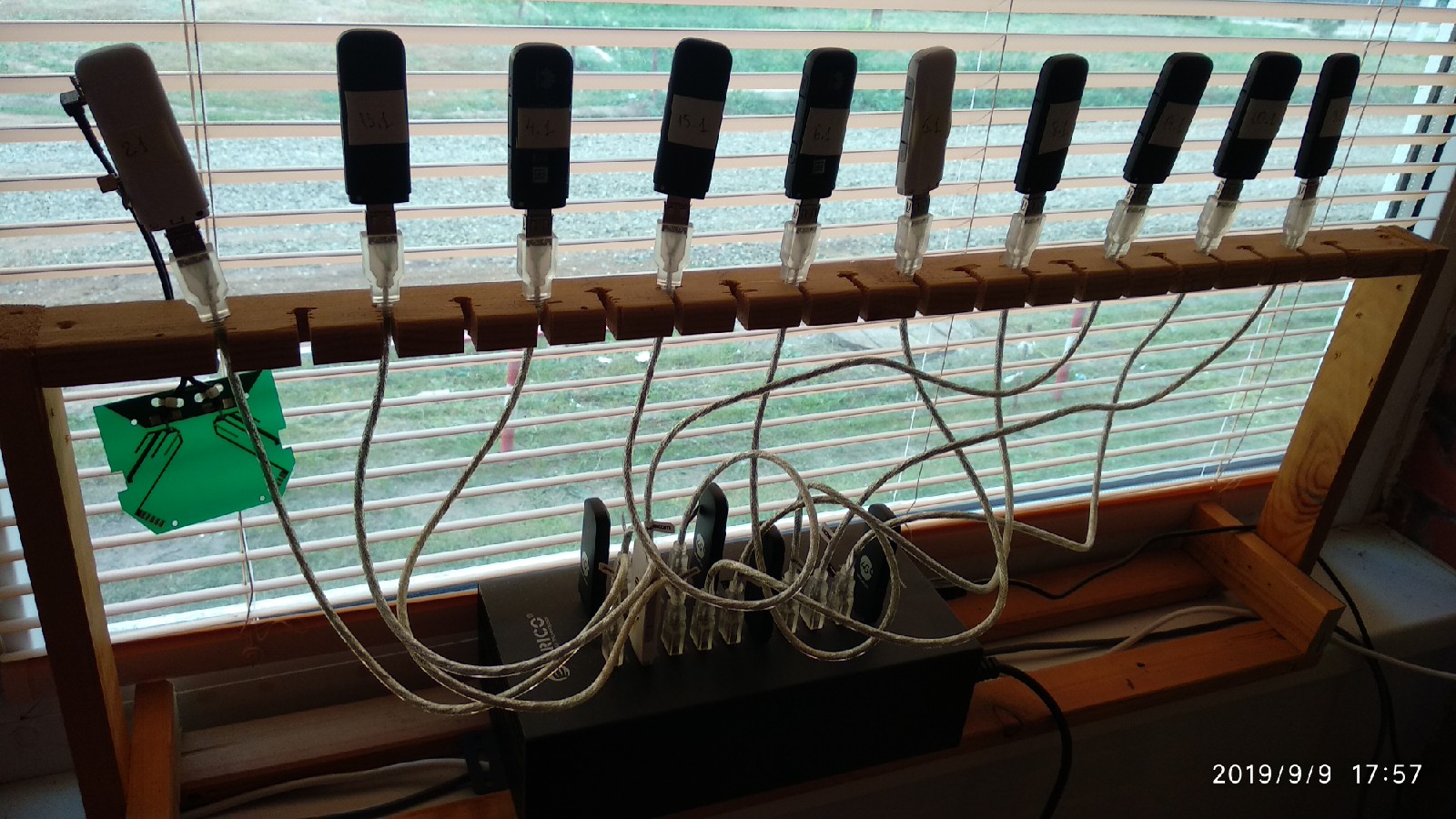
I provide a service for setting up mobile proxies on your own hardware.
In the previous article I covered how to set up mobile proxies using a MikroTik router in combination with a TP-LINK TL-MR3020.
Due to the fact that:
Some people asked — why all these routers and extra equipment? You can set up mobile proxies on a USB hub, and it is much cheaper. So I decided to publish this article.
I kept putting it off, and there were also some technical challenges in implementing this method.
What we get — mobile proxies at a lower hardware cost.
What you need — the same 4G modems Huawei E3372h, a PC running Linux (Ubuntu 16), and a powered USB hub. I personally got a solid ORICO USB HUB with 20 ports. As for the PC, it depends on your requirements — the number of threads per proxy and the number of modems. If requirements are high, a multi-core processor is better, as it takes most of the load. If you just want a few mobile proxies for personal use, a laptop will do.
Any router will work — you probably already have one. It is only needed for connecting your main internet with a static IP and port forwarding, though this also depends on your project load. By the way, it is possible to use a 4G modem as the primary connection together with a third-party service. For this it is better to get a router (such as MikroTik) that supports a USB port.
The main requirement for the modems is that they must be flashed with a modified firmware that allows changing the IP address (gateway) in the DHCP server settings.

First of all, check whether this feature is available in your firmware. If not, you can find the appropriate firmware and reflash your modem.
The main peculiarity (and drawback) of this setup is that each modem is tied to a specific USB port — you cannot switch ports, otherwise the settings will be lost. Everything else works the same way: unplug the modem, swap the SIM card, plug it back in, and the proxy is up and running. No additional console commands are needed. This also applies after a server reboot.
I also recommend using USB extension cables to spread the modems apart so they do not overheat or interfere with each other. A 0.5-meter USB cable is enough — just do not go for the cheapest ones. I personally ordered a special USB extension cable for connecting USB modems from here.
P.S. The article will continue to be updated!
For questions about mobile proxies and their setup, write to my Telegram @residentmobile
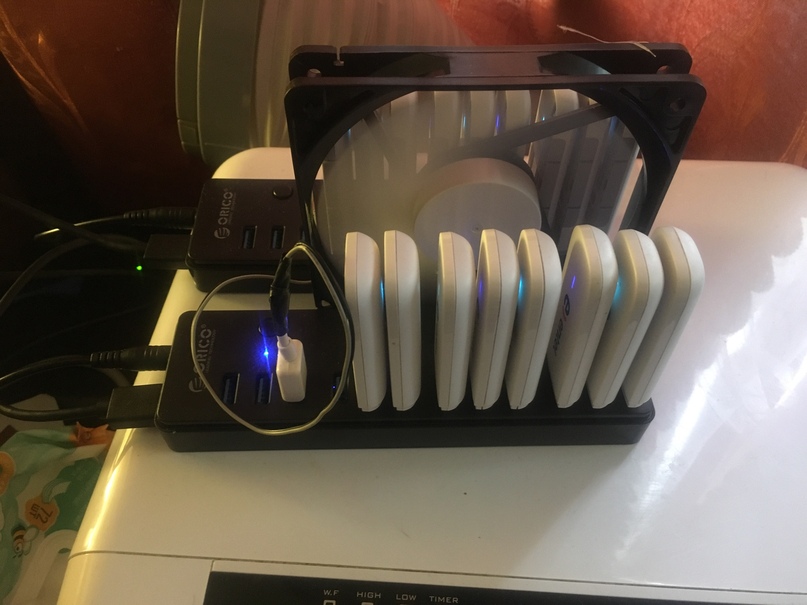
Link to hub USB Hub ORICO P12-U3-BK
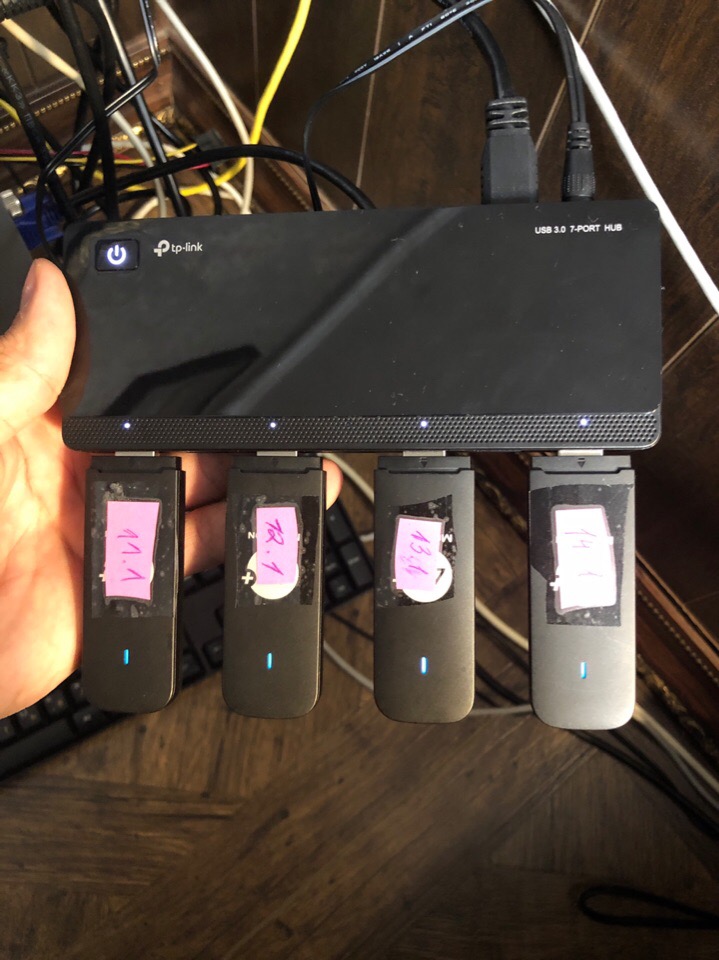
Link to hub USB Hub TP-LINK UH-720
Link to hub DIPO 49 ports